

CONNECT HELPCENTER · PRODUCTS AND CATALOG
One catalog product. Your own offer.
A Common product connects shared item data with seller offers. Before creating a new record, check whether the corresponding item already exists to avoid duplicates in the catalog.

Before you start
Prepare the exact model, manufacturer part number or GTIN, your own selling price, and the available quantity. The shared item description and your offer are not the same record: the product name, your offer price, and availability have different roles.
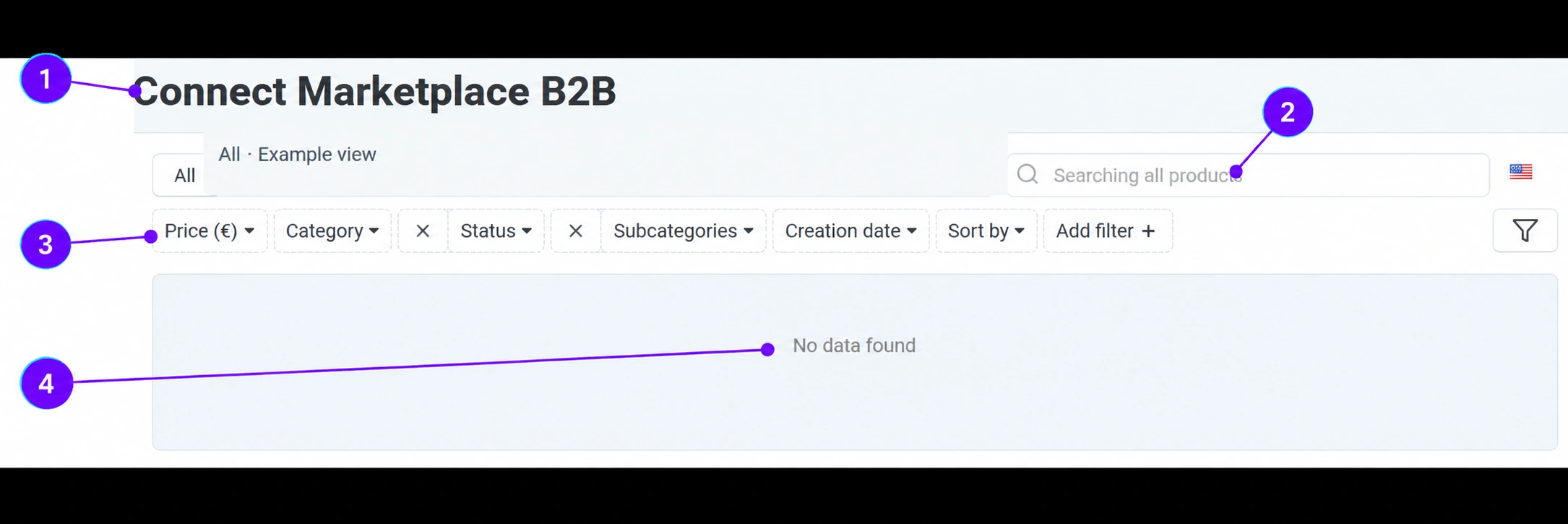
The screenshots use the English interface and sample data. Numbered labels connect the image with the localized explanations. Click the image to open a larger view. The availability of individual fields depends on the product type and your account permissions.
Step-by-step procedure
- 1
Open the catalog available to sellers
Go to Products → Products and select the button for adding a product from the catalog. In the current CM interface, this link leads to a view titled Connect Marketplace B2B, shown in the image. The view depends on your access and the prepared assortment.
- 2
Search for the exact item
Use the search field. Compare the brand, model, packaging, size, and other identifying details. A similar name is not sufficient for linking: two products may look identical but have a different version or package contents.
- 3
Narrow the results
Select the category and required filters, then check the saved view. Remove old conditions if you cannot find the item. Do not link an offer to the first approximately similar product just to get through the process.
- 4
Check availability and continue to the offer
When the appropriate item is offered, check its data and the available action for adding it to your catalog. After adding it, edit the permitted fields of your offer, especially the price and inventory, then save. Send shared data that you cannot edit to the Connect team for correction. The image shows an empty result; this means that no records are offered in that context and with those conditions, not that you should bypass the process by creating a duplicate.
If the product is not offered
Send the Connect administration the item identification, manufacturer, part number or GTIN, and information confirming the version. The team will check whether the item can be offered as a Common product or needs to be entered separately. For the Digital Catalog module in development, follow the corresponding guide; the button name alone does not confirm that every planned retrieval method is available.
What do you manage, and what does the Connect team manage?
You maintain your permitted offer and availability. Connect administration manages the shared catalog record. The comparative view of multiple sellers depends on the active features and the storefront template.
Additional reference: official instructions for Common products.
Check after saving
- The offer belongs to the exact model and package.
- The price and inventory of your offer have been checked.
- You have not confused a change to the shared description with a change to your own offer.









