

CONNECT HELPCENTER · ADDING PRODUCTS
From basic information to a prepared item.
Prepare a new product with a clear name, correct category, description, photos, price, and stock. This guide follows the initial form in Connect Marketplace Vendor Admin and explains what to check before activation.

Prepare the information before entering it
Prepare the item name and SKU, the description in the offer language, technical specifications, photos, price and currency, tax treatment according to your store settings, stock, and shipping information. If the product has sizes or colors with their own stock, plan the variations; if the customer only adds a message or selects an add-on, check the options.
Check whether a suitable Common product already exists before creating a separate record. This helps you avoid duplicating the same catalog item. For a missing category, send a request to Connect administration.
Screenshots show the English interface without real seller data. The explanations are in the language of this page. The new product shown has not been saved and is for demonstration purposes.
1–6 · Name, category, price, description, and images
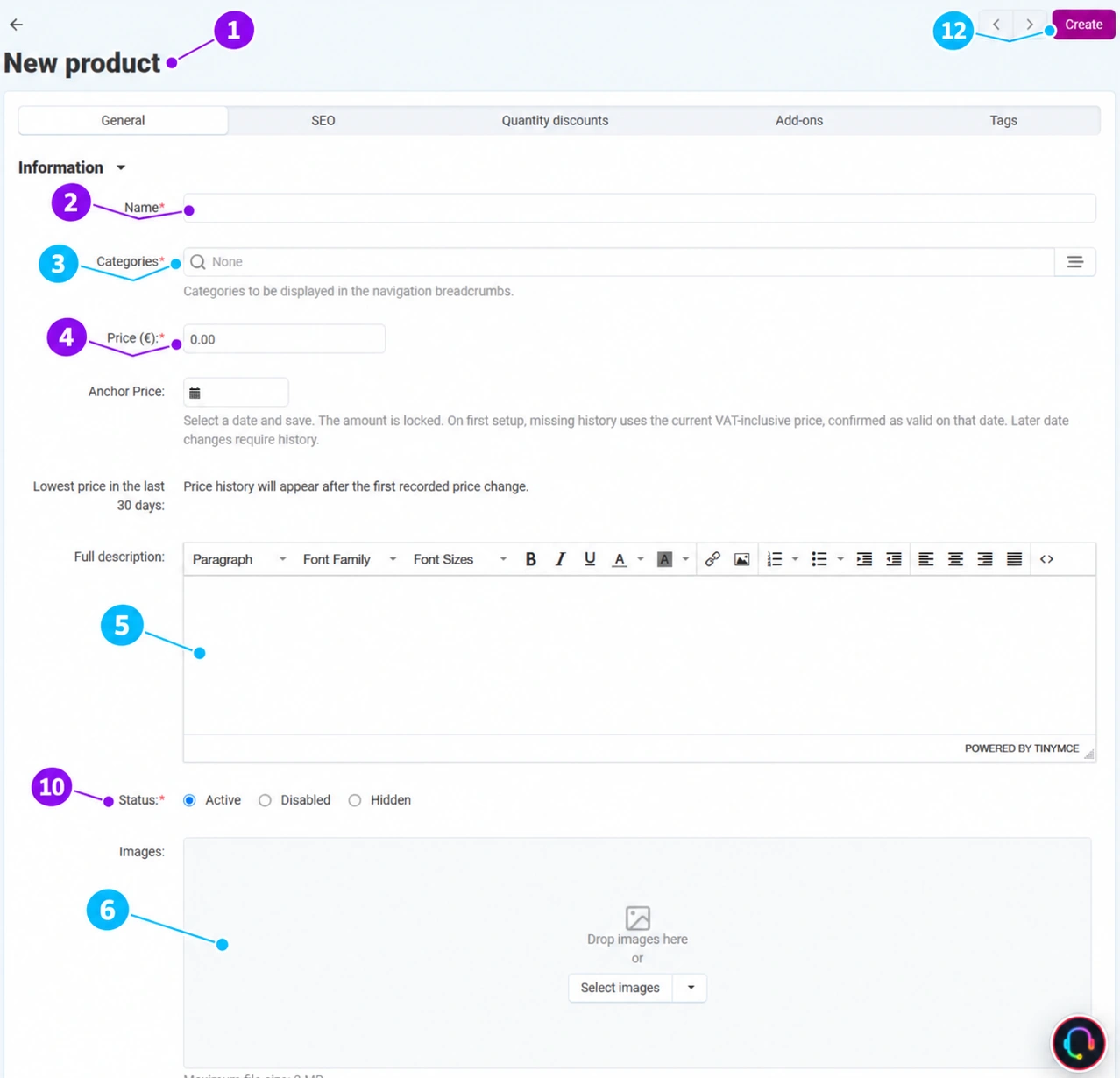
- 1
Open a new product
Select Products → Products → Create new product. The Generaltab opens. A red asterisk indicates a required field. In the initial form, you will see a smaller number of tabs; shipping, options, features, and other sections become available after the product is created for the first time.
- 2
Write a clear name
Use the product type, brand or model, and an important distinguishing characteristic. Example: “Active 30 L Sports Bag”. Do not stuff the name with a list of unrelated keywords, an entire sales message, or information that belongs in the description. Write the name in the language of the content you are editing.
- 3
Select an existing category
Enter the category name in the category field or open the selector using the icon on the right. Select the narrowest suitable category in the permitted tree. The main category is used in the navigation path and related settings. Select an additional category only if it is genuinely relevant. Request a new branch or a change to the tree from Connect administration; do not assign the item to an unrelated category just because the desired one is missing.
- 4
Enter the price and check the active currency
Enter the selling price and, lower in the form, check the Active currency marked with the same number in the second image. The amount, currency, and tax configuration must together produce the expected price for the customer. Zero does not automatically mean that the item is free: the behavior depends on a separate zero-price setting. The lowest price in the last 30 days is separate from the recommended price. If there is a reference-date selection, do not set it arbitrarily; verify the documented initial data and locking method with the Connect team.
- 5
Write a complete description
In the editor, enter a concise introduction, purpose, package contents, material, dimensions, and other information the customer needs to make a decision. Use short paragraphs, subheadings, and a clear list. Enter technical data in the corresponding features as well, so it is not available only within the text. Do not copy unverified claims or someone else’s photos.
- 6
Upload photos
Drag files into the designated area or select the image button. In the open form, up to 8 MB per file and a maximum of 6000 px on the longer sideare allowed; follow the limits shown in your administration. Prepare a clear main photo, followed by details and usage views. After uploading, check the order, preview, and alternative text. Gallery and video requirements are covered in a separate guide.
7–9 · SKU, recommended price, and stock
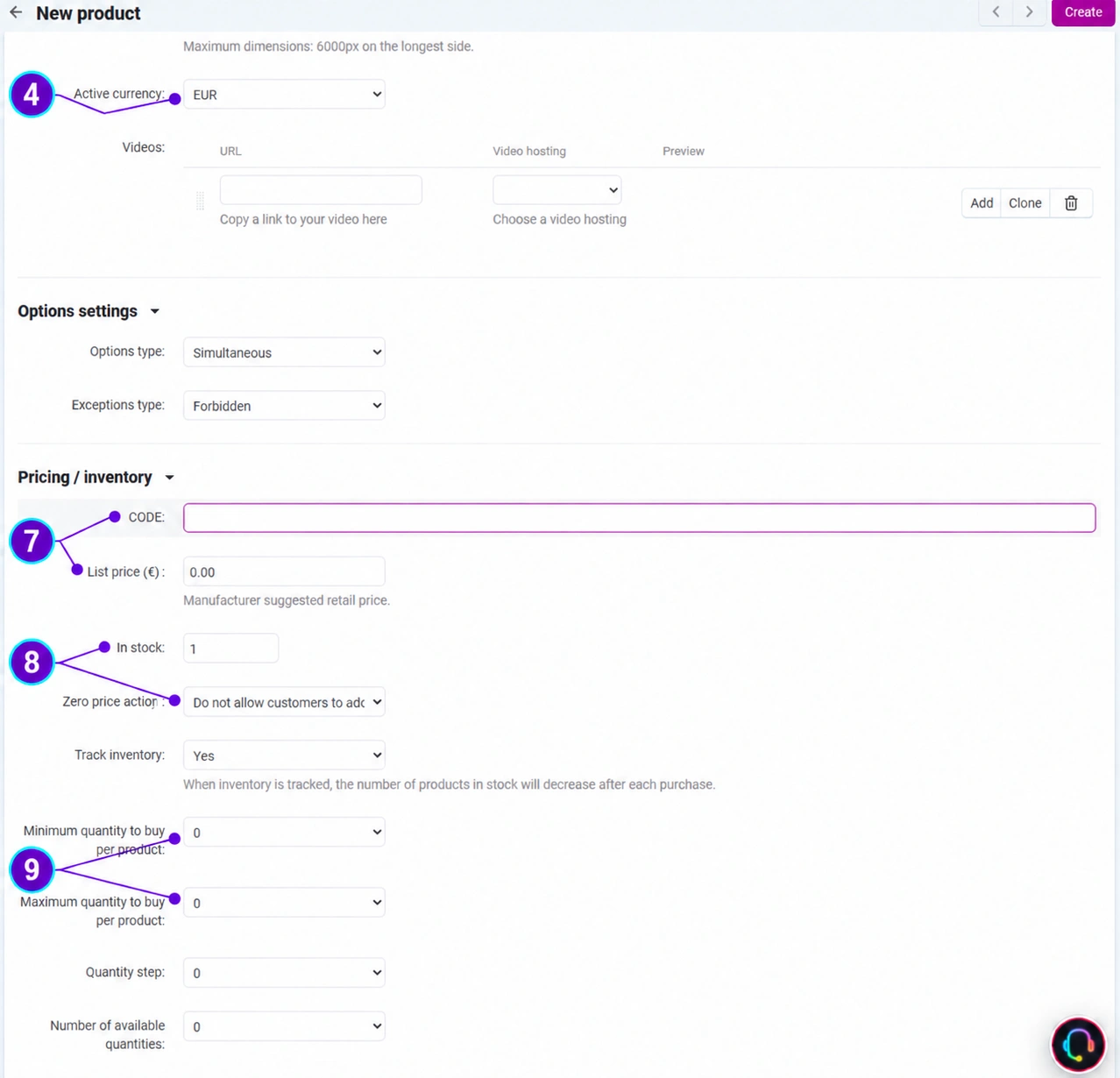
- 7
Enter the SKU and distinguish between price types
In the pricing and inventory section, enter your own item SKU. Use consistent SKUs to connect the catalog with an import or warehouse system. Recommended price represents the recommended retail value; it is not a second field for the current selling price or a replacement for the recorded lowest price. Enter it only when you have the appropriate data for it.
- 8
Set stock and inventory tracking
Enter the available quantity and decide whether the system should track inventory. When tracking is enabled, a purchase reduces stock according to the order flow. Check the data source if the quantity comes from an integration. The zero-price setting separately determines whether purchasing is prohibited, permitted, or an amount is requested from the customer; do not enable it without an intentional business decision. For variations, check the stock of the specific combination, not just the base record.
- 9
Set quantity limits only when necessary
The minimum quantity sets the smallest number of units that can be purchased, the maximum sets the upper limit, and the quantity step determines the permitted increments. The number of available quantities affects the quantity selection offered. Example: a package sold in quantities of six requires aligned minimum and step values. Check the behavior in the cart; do not arbitrarily copy zeros or default values from another item.
10–12 · Availability, review, and creation
- 10
Select a status based on content readiness
The status is marked in the first image. Active includes the product, Hidden excludes it from the usual catalog display, while Disabled indicates an unavailable product. Do not use a hidden product to protect confidential data. For an unfinished item, use the disabled status and activate it after checking the description, price, availability, and appearance.
- 11
Review taxes and other fields lower in the form
In Taxes, use settings configured for your store; do not randomly select a rate or a method for including tax in the price. Under Availability, check user groups, the availability date, and the procedure for when there is no stock. Pre-ordering and signing up for a notification have different purposes. The additional section of the form contains a short description, words for internal search, promotional text, and a digital product flag. Enable the download flag only for a product that is actually delivered as a file. Align the display template with the Connect team.
- 12
Create the product and complete its tabs
The Create button is located in the upper right of the first image. Before confirming, check the required fields and status. After successful creation, open the saved product, record its SKU, and complete the shipping, features, options or variations, and other required tabs. Further changes are confirmed with the Savebutton. Review the public product page on desktop and mobile; check the photos, price, currency, quantity, and ability to add the item to the cart before activation.
If creation does not work
- Read the message next to the required field, especially the name, category, and price.
- Check the content language and permitted category.
- For a photo, check the size, format, and dimensions according to the upload message.
- If the price or stock returns to a previous value, check the import and the connected data source.
- Send the SKU or product ID and the exact message to support; do not send your password.









