

CONNECT HELPCENTER · PRODUCTS AND CATALOG
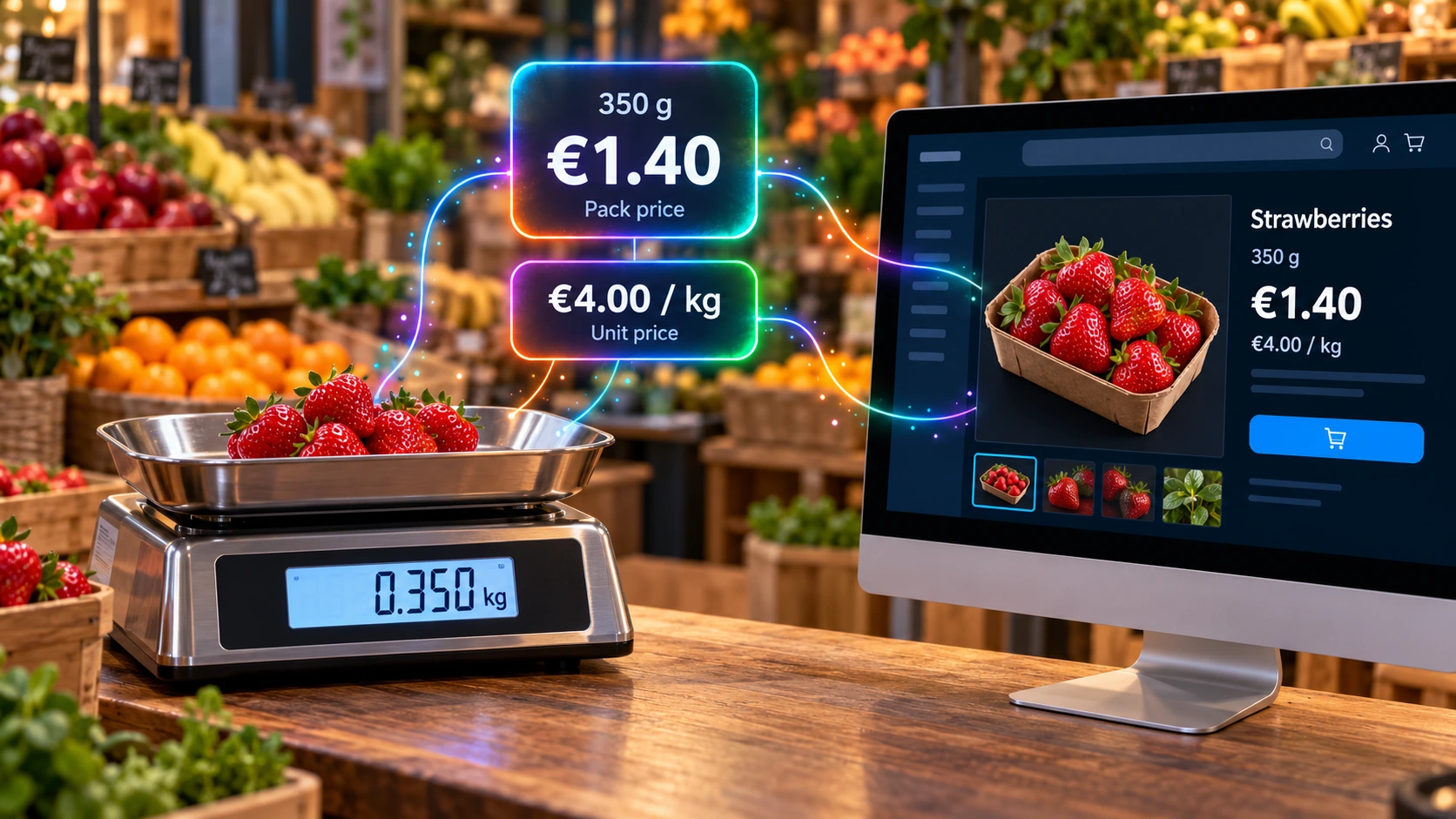
Clearly display the product price and units of measurement.
Advanced pricing adds the display of the unit price, packaging and tax amounts, as well as messages for quantity discounts. Display settings do not replace the base price, taxes, or discount rule.
Before you begin
Prepare the quantity of contents in one product, the unit of measurement, the sales unit, and the display base. Before enabling this, check the base price and the item's tax entry method.
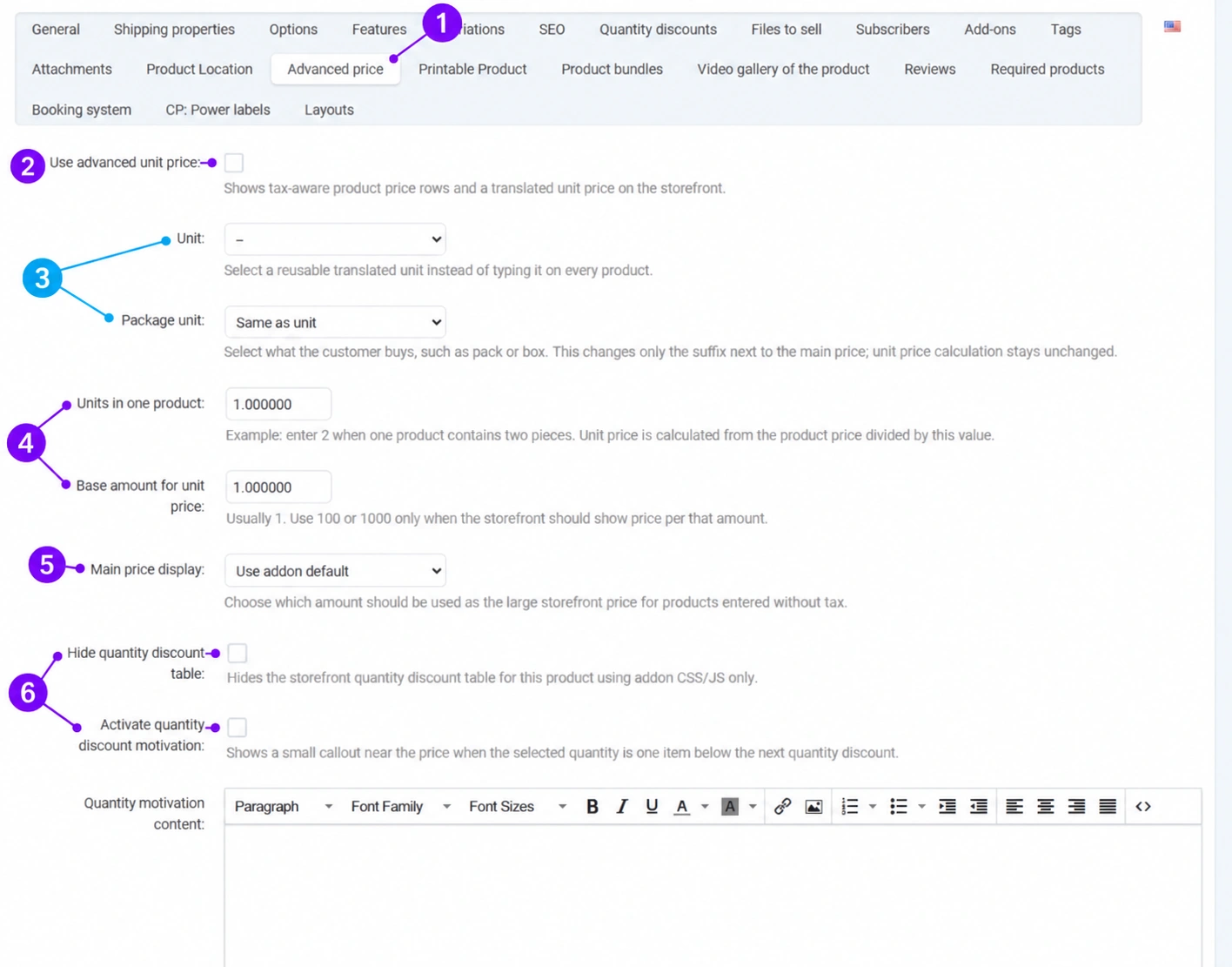
Screenshots use the English interface and sample data. Numbered labels link the image to the localized explanations. Click the image to open a larger view. The availability of individual fields depends on the product type and your account permissions.
Step-by-step procedure
- 1
Open Advanced pricing
Open the saved product and the Advanced pricing. Here you edit how advanced pricing data is displayed for the specific product.
- 2
Enable unit pricing
Enable the advanced unit price checkbox when you want to display this feature. Activation alone does not correct an incorrectly entered base price and does not automatically define the package contents.
- 3
Distinguish the unit of measurement from the packaging unit
In Unit, select piece, kilogram, meter, liter, or another available value. The packaging unit describes what the customer is buying, such as a package or set. It changes the label next to the main price; it does not change the unit price formula itself. Do not try to convert grams to kilograms by changing the label.
- 4
Enter the content quantity and base
The number of units in one product must correspond to the selected unit of measurement. The display base is usually 1. Example: a 0.5 kg product priced at 20 EUR gives 40 EUR/kg when the base is 1 kg. For two pieces at 20 EUR, the price is 10 EUR/piece. Use values of 100 or 1000 only when you intentionally display the price for that many units. A zero content quantity is not a valid substitute for an unknown value.
- 5
Select the main tax display
You can inherit the add-on's default setting or select a price with or without tax according to the permitted operating mode. This displays the amount; it does not change the tax rate. Check which amount was entered as the base price and compare the public display with the expected calculation.
- 6
Edit the discount table and motivational messages
Hiding the discount table applies to its public display, not to deleting the rule. A motivational message can be displayed when the customer is one unit short of the next threshold. A separate message confirms that the first discount threshold has been reached. Enter your own content in the corresponding field or leave it empty to use the default text. Set the actual thresholds in advance on the Quantity discounts tab.
- 7
Save and compare multiple quantities
Save the product, check the packaging label and the unit price calculation, and test quantities before and at the discount threshold. Test on a computer and mobile device. If the main amount or unit is not as expected, first check the package contents, base, and tax display before making further changes.
Post-save verification
- The unit of measurement and the entered content quantity are consistent.
- The packaging label has not been confused with a mathematical conversion.
- The unit price and messages have been checked for multiple quantities.









