

CONNECT HELPCENTER · PRODUCTS AND CATALOG
Prepare a product that the customer can personalize.
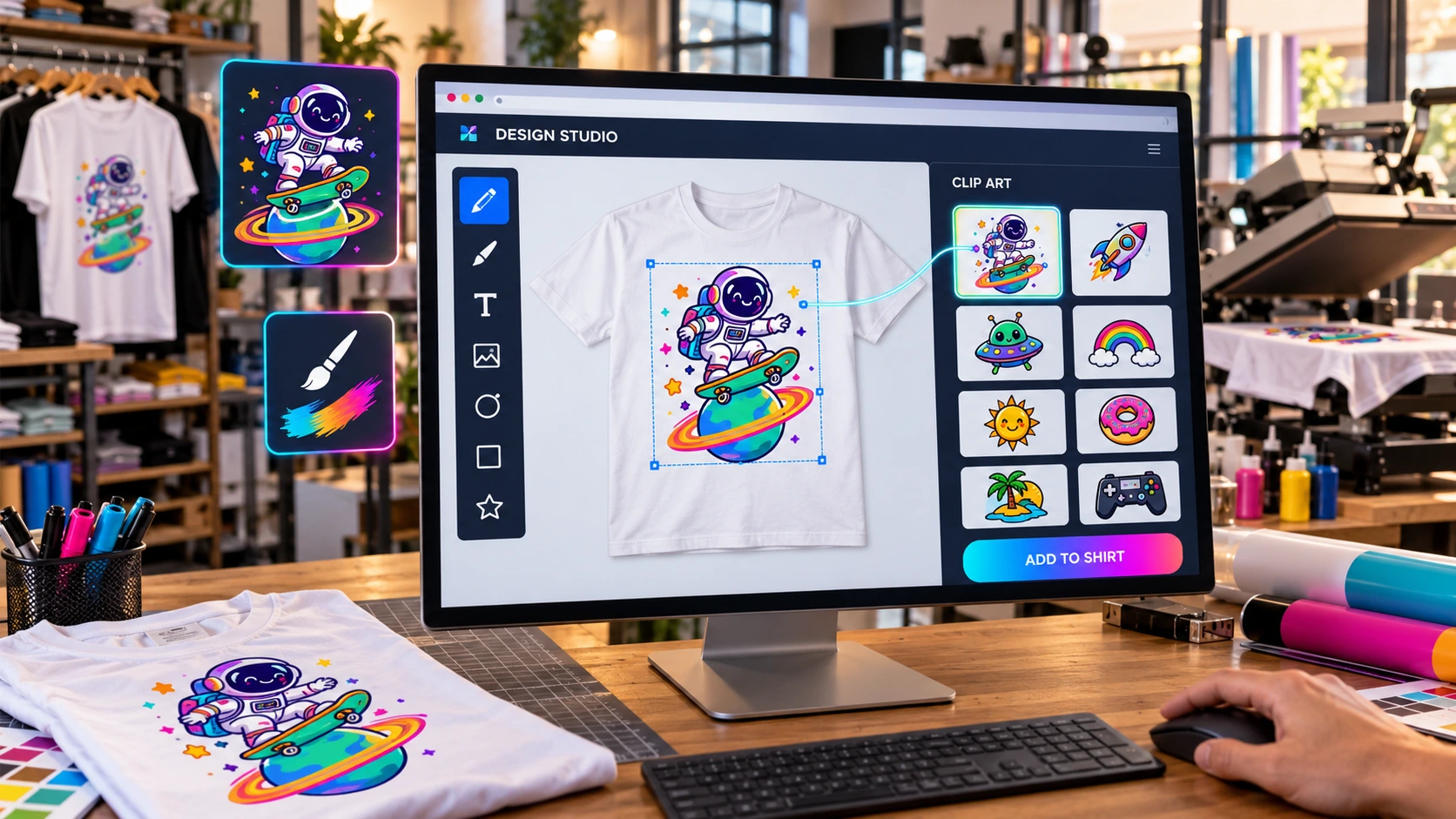
A printable product can open a design editor with text, image uploads, and a gallery of prepared designs. Prepare the backgrounds and clearly explain what can be personalized.
Before you begin
Prepare the base item, photos or backgrounds for the individual product sides, permitted designs, and production restrictions. Determine what the customer receives, which area is printed, and whether a final review is required before production.
Screenshots use the English interface and sample data. Numbered labels connect the image with the localized explanations. Click the image to open a larger view. The availability of individual fields depends on the product type and your account permissions.
Step-by-step process
- 1
Open the printable product tab
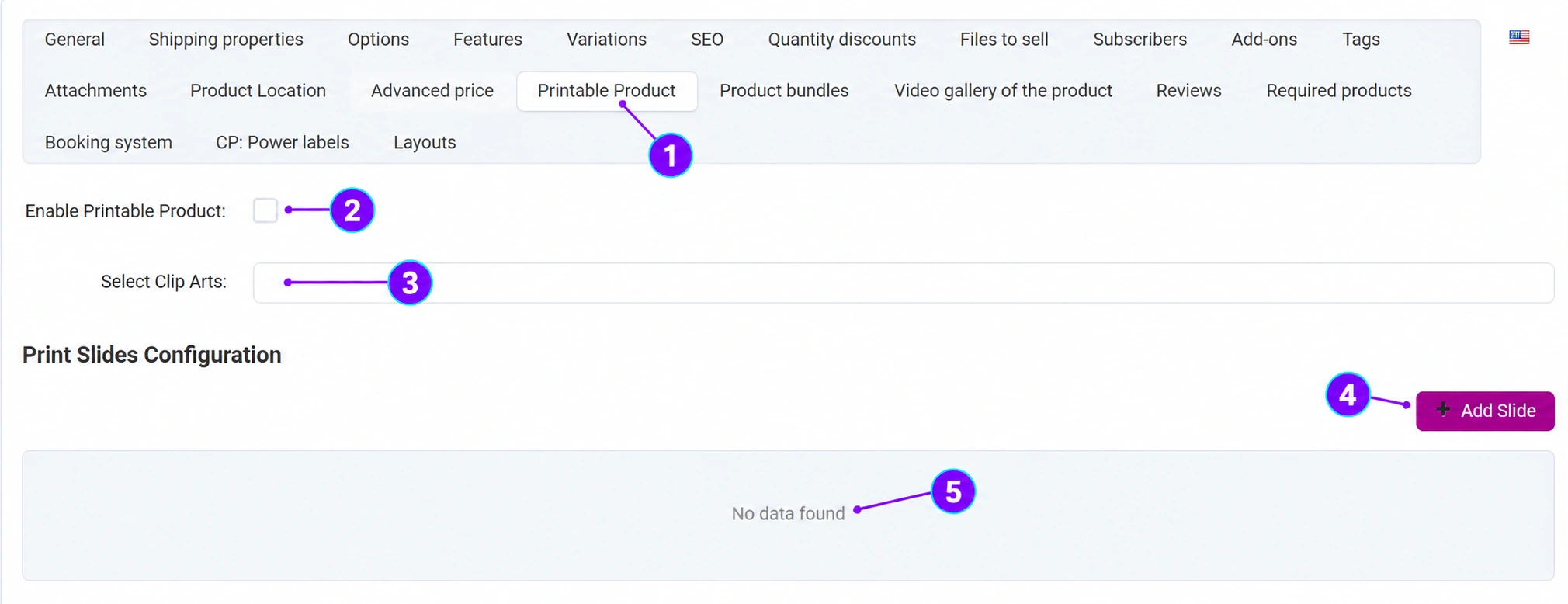
In the saved product, select the Printable Producttab. In the English image, it is identified as Printable Product. First check the base price, description, and item variations.
- 2
Enable the personalization feature
Enable the printable product option when the prepared item actually supports this mode. Complete activation only after preparing the backgrounds and designs and checking the customer's editor. The checkbox itself does not provide production specifications.
- 3
Select prepared gallery designs
In the designs field, select the clip art that the customer is allowed to use. The design library is available under Marketing → Design Management according to your permissions. Use materials for which you have production and sales rights; coordinate shared designs and their changes with the Connect team.
- 4
Add backgrounds or views
Use the Add View button to open a form with a name, image, position, and status. The reviewed form supports JPEG, PNG, and JPG images. Prepare backgrounds for the actual sides of the product, such as the front and back of a T-shirt, with clear names and ordering.
- 5
Check the view list and save
An empty list means that backgrounds have not yet been added. Review the active views, their images, and their order, then save the product. Do not activate sales with an incorrect background or without an agreed personalization area.
- 6
Try the editor as a customer
On the storefront, open the editor and check adding text, formatting, uploading your own image, selecting designs, and previewing the design using the available tools. Check every background. Tell the customer the required image quality and production restrictions; the on-screen preview alone is not confirmation of print quality.
- 7
Check design saving and the order flow
Save a sample design and check its connection to the item and availability in the agreed ordering process. In an agreed test with the Connect team, check what production actually receives. Clearly include the permitted personalization and any additional costs in the price and description. Do not place a real order solely to record the instructions.
What should be clearly stated in the description?
State the base product, available sides, personalization area, permitted designs and formats, required material quality, preparation time, and the design approval process when you use one. The design gallery and photos of the base product serve different purposes and should remain clearly labeled.
Check after saving
- The backgrounds and designs belong to the correct item.
- The editor has been checked with text and a sample image.
- The saved design and production process have been checked before activation.









