

CONNECT HELPCENTER · PRODUCTS AND CATALOG
Connect your offering to a place on the map.
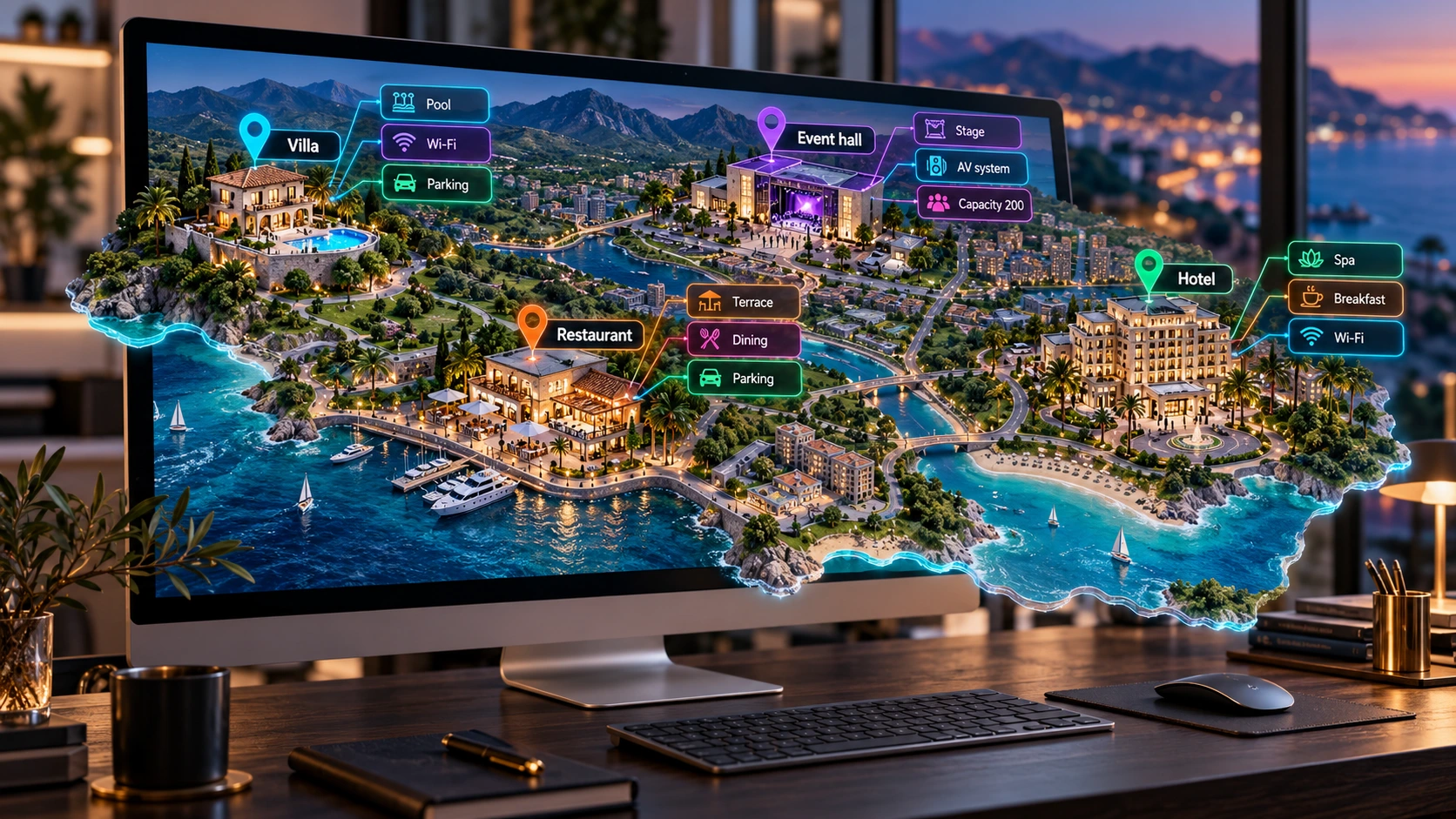
Product location is useful for real estate, hotels, hospitality venues, and location-based services. Enter the address and position, then check what the customer actually sees.
Before you start
Prepare the property's address and accurate coordinates. Product location is not automatically the seller's headquarters address, delivery zone, or tax calculation setting. These are separate system components.
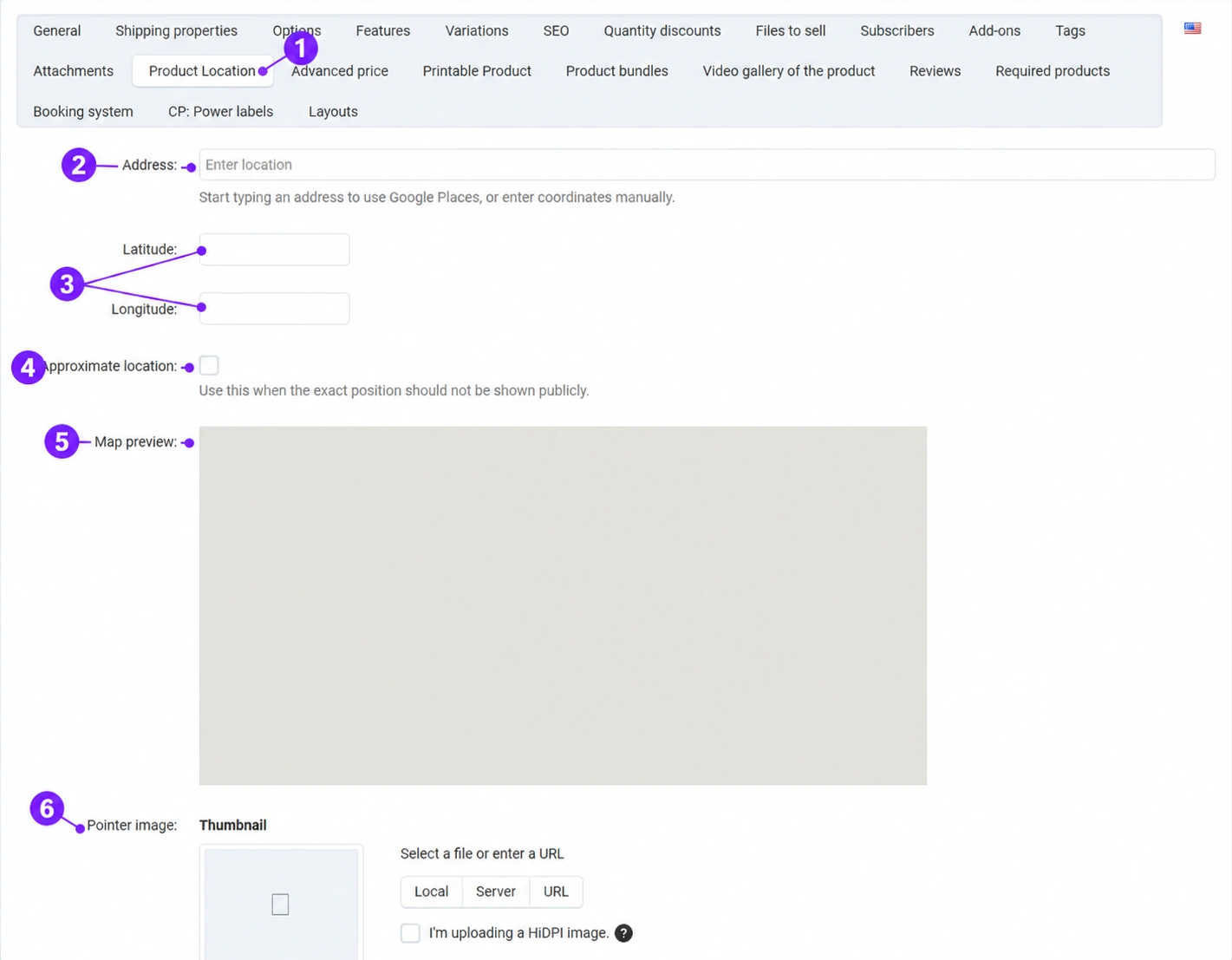
Screenshots use the English interface and sample data. Numbered labels connect the image with the localized explanations. Click the image to open a larger view. The availability of individual fields depends on the product type and your account permissions.
Step-by-step procedure
- 1
Open Product location
Open the item and the Product locationtab. The fields are used for the property or place to which the offering relates. For an ordinary physical item with no connection to a location, you do not need to enter an arbitrary address.
- 2
Enter the address
Start typing the address and, when the service is available, select the appropriate suggestion. Check the house number, city, and country. If suggestions are unavailable, do not select an approximately similar address in another city; use verified coordinates or ask for help.
- 3
Check the latitude and longitude
Latitude and longitude are different fields. Enter verified values in the expected format and pay attention to the sign. Swapped coordinates can place the marker very far from the property. The address in the text and the point on the map must correspond to each other.
- 4
Enable approximate location when you do not display the exact position
This option is used to display an approximate position when the exact location should not be shown publicly. Check the final result on the storefront; do not assume what the public marker looks like based solely on the selected checkbox. Clearly state in the offering text if you are showing the customer only an area.
- 5
Review the map
The map preview helps verify the position. If the area is blank, check the saved coordinates, map availability, and configuration with the Connect team. Do not invent another location to remove the blank display. Displaying offerings on a category map also requires an appropriate category layout.
- 6
Add a marker and check the public display
The marker image is used as the marker on the category map according to the module configuration. Upload an appropriate image, save the product, and check the individual offering and category. The marker image does not change the coordinates. Coordinate special templates for real estate and similar offerings with the Connect team.
Post-save check
- The address and coordinates point to the same property.
- The approximate or exact public display matches the agreement.
- The map has been checked on the product and in the appropriate category view.









