

CONNECT HELPCENTER · PRODUCTS AND CATALOG
Allow customers to choose additional services and provide information.
Product options are used to select an add-on or enter customer information, such as gift wrapping or engraving text. Distinguish them from features and variations, which serve a different purpose.

Before you start
Prepare the option name, input type, allowed values, and any impact on price or weight. For sizes and colors with their own inventory, use variations instead of trying to manage separate inventory with an option.
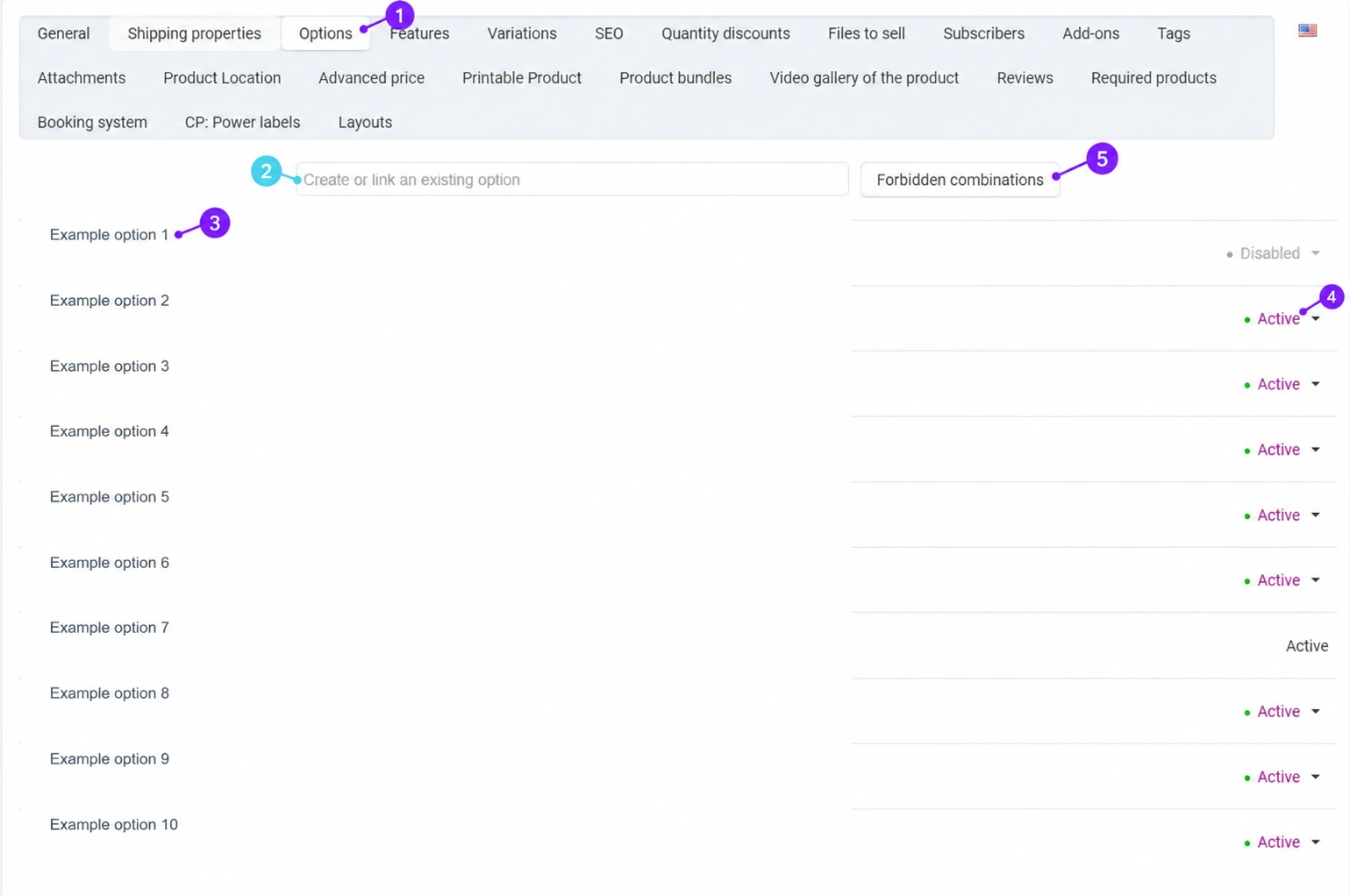
Screenshots use the English interface and sample data. Numbered labels link the image to the localized explanations. Click the image to open a larger view. The availability of individual fields depends on the product type and your account permissions.
Step-by-step procedure
- 1
Open the saved product and Options
In the product list, open the item and select the Optionstab. The image shows sample names; statuses indicate which options are enabled and disabled.
- 2
Link an existing option or prepare a new one
The field above the list lets you create or link an existing option. First, check whether the required option already exists. For a shared option, check which other products use it; changing the shared definition may affect them as well. For a new option, enter a clear name and a field type that matches the required information.
- 3
Edit the name, values, and required setting
Open the option by clicking its name. For a selection, prepare the allowed variants; for a text field, provide a clear name and instruction. Mark it as required only when you cannot fulfill the order without that information. Set an additional price or weight for values deliberately, and check the total with the selected variant. Do not collect personal data that is not needed for delivery.
- 4
Check the option status
An active option is available according to the display conditions; a disabled option is not offered for a new selection. Temporarily disabling an option serves a different purpose than deleting it. Before changing a shared option, check its scope.
- 5
Check the order and combinations
The product's general data includes simultaneous or sequential option selection and the exception type. Simultaneous selection allows an independent order of choices; sequential selection guides the customer through the choices in the offered order. The combinations menu in the image is used for allowed or forbidden combinations, according to the product setting. Write down the business rule before restricting the choices.
- 6
Save and test the customer's path
Save the option and product using the controls shown. On the storefront, check an empty required value, every allowed selection, and the total price. Add a sample selection to the cart without submitting a real order, and check that the selected information is visible next to the product.
Option, feature, or variation?
An option collects a customer's selection or input. A feature describes an item's property and can be used for filtering. A variation represents a specific version with its own data. For independent inventory by size and color, continue to product variations.
The basics of option behavior: official CS-Cart instructions.
Post-save check
- You selected the appropriate field type.
- Required settings and combinations do not block a valid purchase.
- The selection and any additional price are visible in the cart.









