

CONNECT HELPCENTER · PRODUCTS AND CATALOG
Help customers and search engines understand the product.
Product SEO settings define its address, page title, and metadata. The best results come from aligning this information with a clear name, original description, and accurate product specifications.

Before you start
Prepare the main term customers use to describe the product, the exact model, and its benefits. Write for the customer's actual intent. Repeating the same phrases in every field is no substitute for quality content and does not guarantee a position in search results.
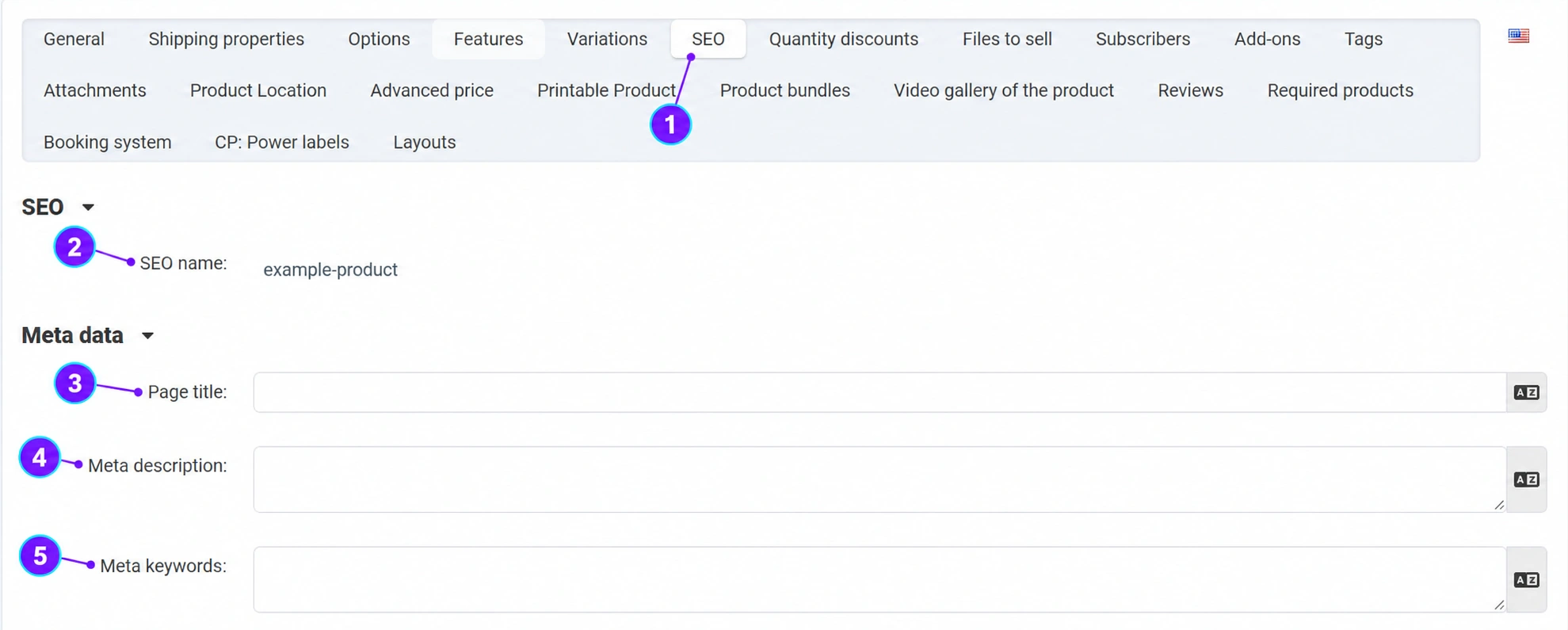
Screenshots use the English interface and sample data. Numbered labels connect the image with the localized explanations. Click the image to open a larger view. The availability of individual fields depends on the product type and your account permissions.
Step-by-step procedure
- 1
Open the product SEO tab
Open the item from the product list and select SEO. Check the language of the content you are editing. Translations should describe the same product using natural terms in the target language.
- 2
Check the SEO name and existing address
The SEO name forms the readable part of the URL. Use a short, descriptive name with the model or an important distinction between items. Coordinate any change to an existing published address with Connect administration so it can check redirects and links from other resources. Changing the URL is not a way to remove a poor review or automatically improve a page's ranking.
- 3
Write the page title
The title should clearly state the product and its important distinguishing feature. Example: “Active 30 L Sports Bag – Blue | Store Name”. Do not enter a list of all possible keywords or promise features the product does not have. The page title and item name are separate fields, but they must be meaningfully connected.
- 4
Write a unique meta description
In one or two concise sentences, describe the purpose, key benefit, and important specification. Example: “Active sports bag with a 30 L capacity and a separate shoe compartment. View dimensions, colors, and availability.” Do not state permanently guaranteed delivery or pricing if they may change. The search engine may also display a different summary from the content.
- 5
Keep keywords relevant
If you use the meta keywords field, enter a small number of genuinely relevant terms. It does not replace the title, description, or technical specifications. For internal search terms, use the separate field in the product's general data; internal search and search engine indexing are not the same function.
- 6
Save and check the public product
Save the changes, open the storefront, and check the browser tab title, address, and content. The snippet preview in the administration serves as a guide and does not guarantee the actual display in the search engine. Check image alt text, links, and the appropriate category. For checking indexing and shared SEO settings, contact the Connect team.
Check after saving
- The title and meta description distinguish this item from the others.
- The address is not changed without checking existing links.
- The public description, price, and availability are accurate and consistent.









