

CONNECT HELPCENTER · PRODUCTS AND CATALOG
Notify interested customers when an item is back in stock.
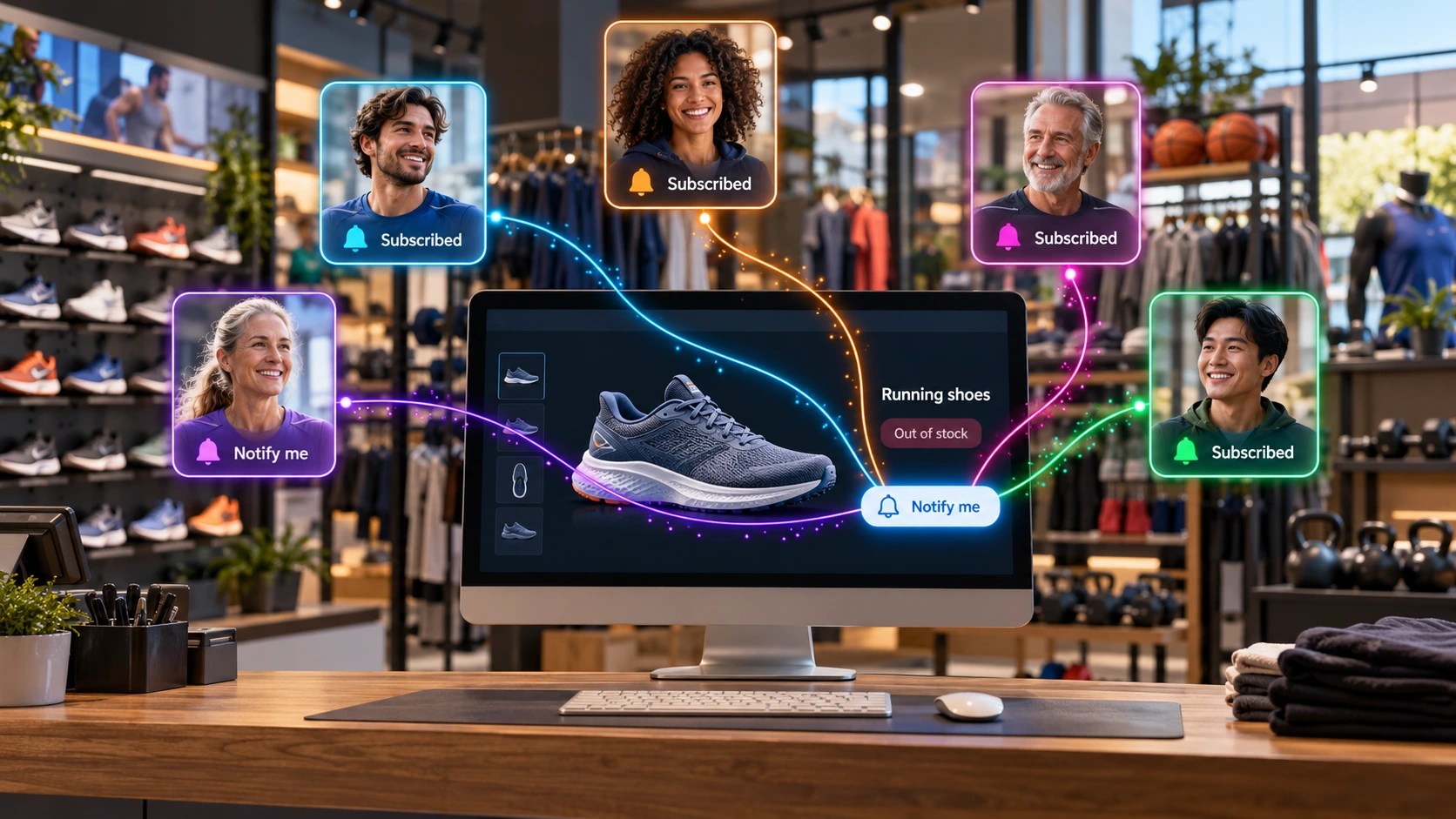
Product subscribers sign up to be notified when a specific item is back in stock. This feature differs from a newsletter and from a product that is charged as a subscription.
Before you begin
Check the stock level, inventory tracking, and the setting for what happens when a product is out of stock. Do not change the actual stock level just to test sending notifications: returning the product to stock may trigger messages to real subscribers.
Screenshots use the English interface and sample data. Numbered labels link the image to the localized explanations. Click the image to open a larger view. The availability of individual fields depends on the product type and your account permissions.
Step-by-step procedure
- 1
Open Product Subscribers
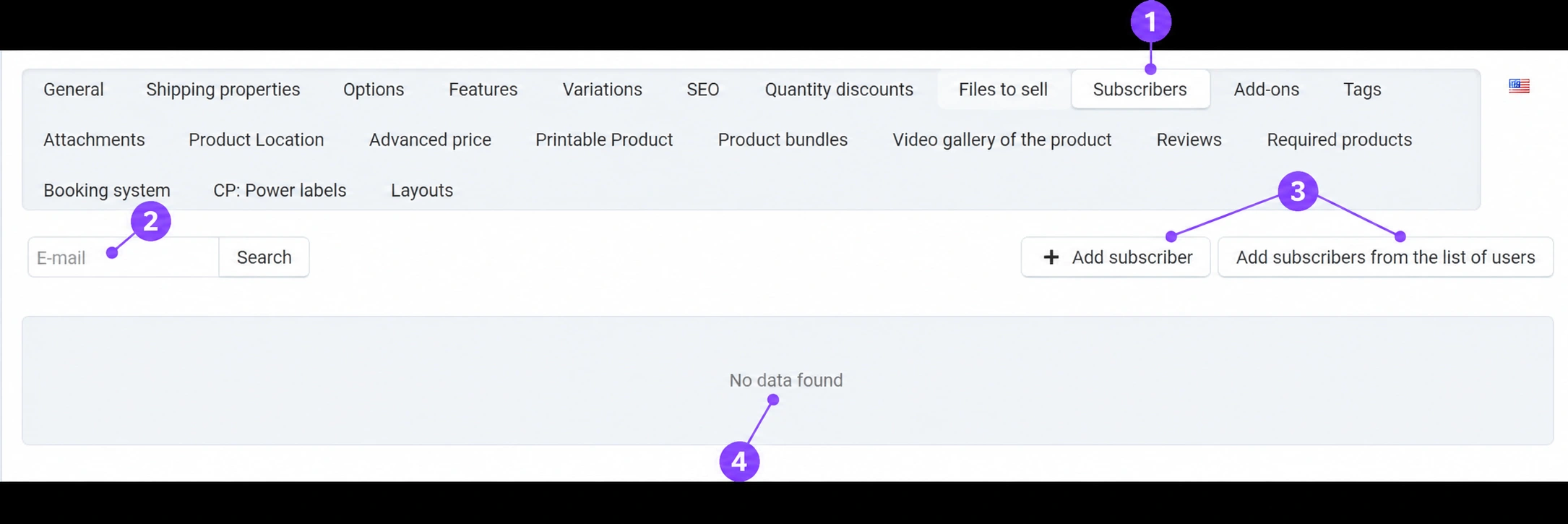
Open the item for editing and the Subscriberstab. In the product's general data, select the notification signup option in the out-of-stock procedure when this is the intended operating mode. The signup option is offered for an item with no available stock according to the active settings.
- 2
Find a signup by email address
Use the search within the tab. This is the list for a specific product, so make sure you are viewing the correct item or its variation. You do not need to look for the address in all products that the same person may have signed up for.
- 3
Use manual addition for a legitimate customer request
You can add subscribers and select from a list of users. Manually add only a person who requested this notification. Do not transfer the entire newsletter list or all customers to this list. Check the address and the exact product before confirming.
- 4
Understand an empty list and the end of notifications
A message saying that there is no data means that there are currently no records in that view. After the product returns to stock, the system notifies signed-up users and may clear the completed list; therefore, an empty list alone is not proof that a signup never existed. To verify sending, contact Connect Support with the product and the time of the stock change.
- 5
Verify the signup with the agreed test
For testing, use the agreed test item and your own test address. First review the signup display, then the return to availability and the message. On a real item, do not trigger a zero-to-positive stock cycle just to record instructions.
- 6
Check special product variants
For variants, the customer is interested in a specific color or size. Check which variant the signup applies to and which one you are returning to stock. If the offer is available but the signup form is still displayed, or is not offered when it should be, provide Support with the variant ID and the current status.
Three different types of subscriptions
Availability notification refers to an item that is out of stock. Newsletter is used for marketing messages and has its own list. Subscription product refers to a recurring purchase or service and is handled in a separate guide.
Check after saving
- The signup display matches the actual stock level.
- You did not trigger notifications by changing the actual item for the demonstration.
- The correct product, variant, and email address were checked.









