

CONNECT HELPCENTER · PRODUCTS AND CATALOG
Connect product variants in a clear group.
Variations are intended for products that differ by selected features, such as color or size. Prepare each variant with the exact SKU, price, image, and available stock.
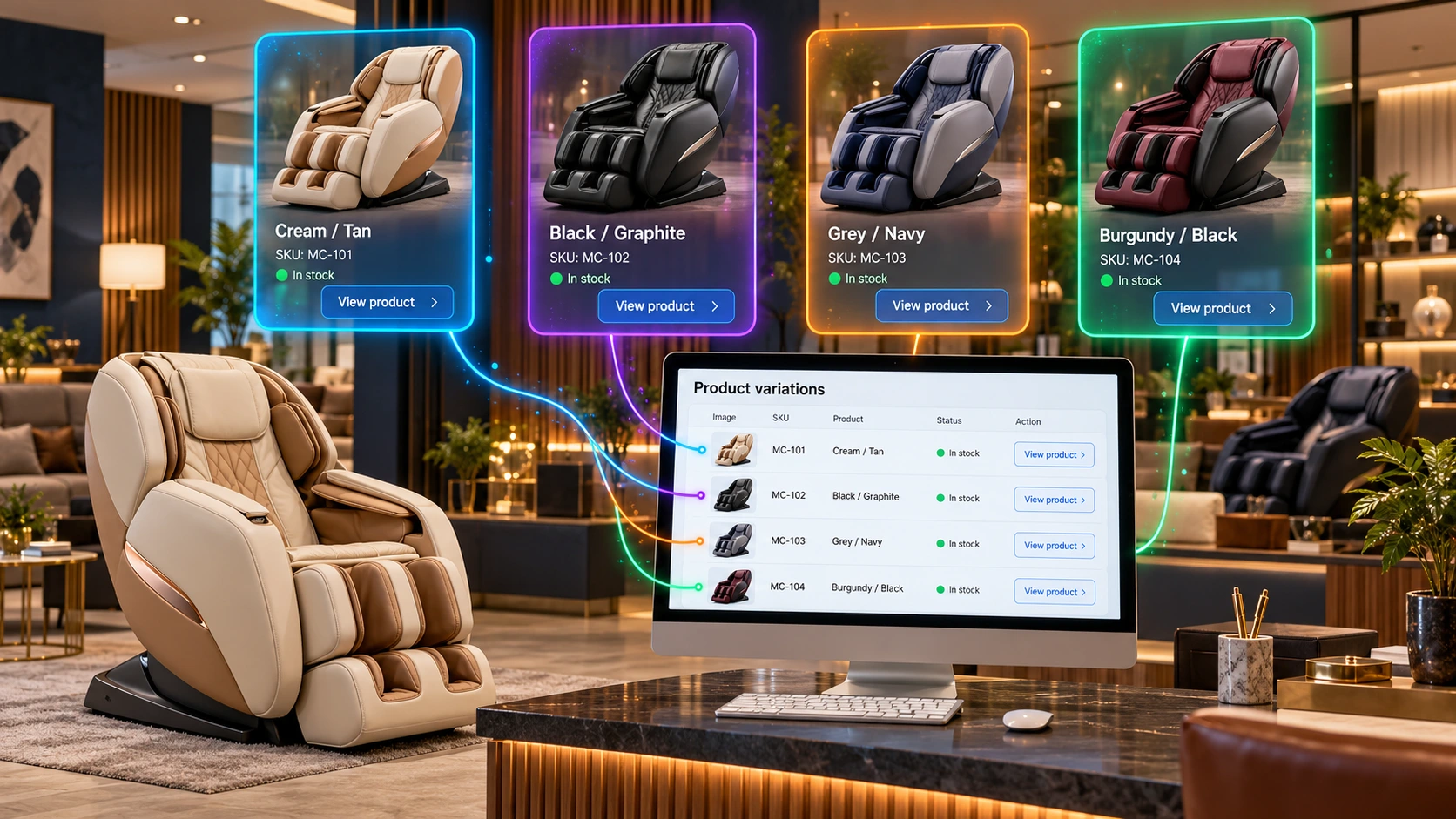
Before you start
First prepare a list of the actual variants. Grouping requires a feature with an appropriate purpose for variations and an entered value on the product. An ordinary text feature does not become a variation feature just because it is called Color or Size.
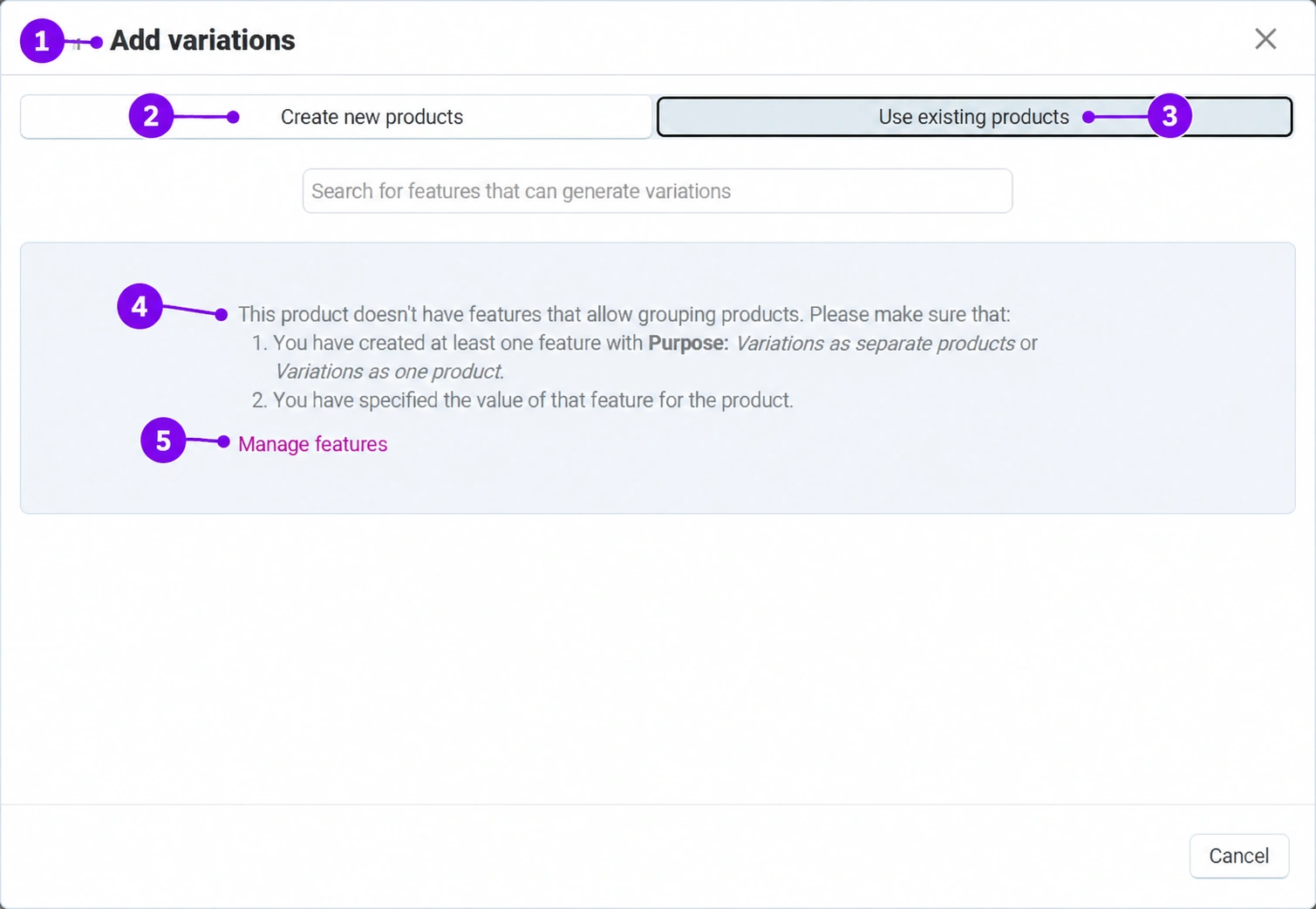
Screenshots use the English interface and sample data. Numbered labels connect the image with the localized explanations. Click the image to open a larger view. The availability of individual fields depends on the product type and your account permissions.
Step-by-step procedure
- 1
Open Variations and add variants
In Products → Products open the saved item, the Variations tab, then Add variations. If a suitable group already exists, you can also connect products using its code. Do not create a new group for every individual item that should belong to the same offer.
- 2
Select the option to create new products
Use this method when the variants have not yet been entered as separate items. Select the prepared variation features and only the combinations that actually exist. Two colors and three sizes do not mean that you really sell all six combinations. Review the suggested variants and their values before creating them.
- 3
Or use existing products
The second method is used to connect items that already exist. Make sure they are variants of the same base product and have the appropriate variation values. Do not connect different models just because they share a brand. Write down their SKUs to avoid duplicates or an incorrect selection.
- 4
Resolve the missing features message
In the screenshot, the system reports that the product has no features that allow grouping. This is not a reason to restart randomly. Close the window and, under Features check the definition and entered value. A purpose for variations is required, either as separate products or as one product, depending on the planned display.
- 5
Align feature definitions with the Connect team
The feature management link leads to its definition. If you cannot edit the purpose or values, send the Connect team the group model, list of colors and sizes, and desired public display. Do not change a shared feature without checking the other products that use it.
- 6
Complete and review each variant
After creating or connecting variants, check the SKU, image, price, currency, and stock of each one. Save the changes, then change each selection on the storefront and check that the corresponding item is displayed. Also test an unavailable combination. If the grouping is not as expected, stop further merging and provide support with the group code and SKUs.
Example of group preparation
Active T-shirt: blue\/S, blue\/M, black\/S, and black\/M. Each combination has its own SKU and stock. The engraving text on this shirt remains an option, while material may be a descriptive feature. This gives the customer's selection and inventory status a clear meaning.
After activation: editing and maintaining variations
Creating the group is only the beginning. Each connected variant still needs to be completed as a real sellable item, and the customer's selection must be checked.
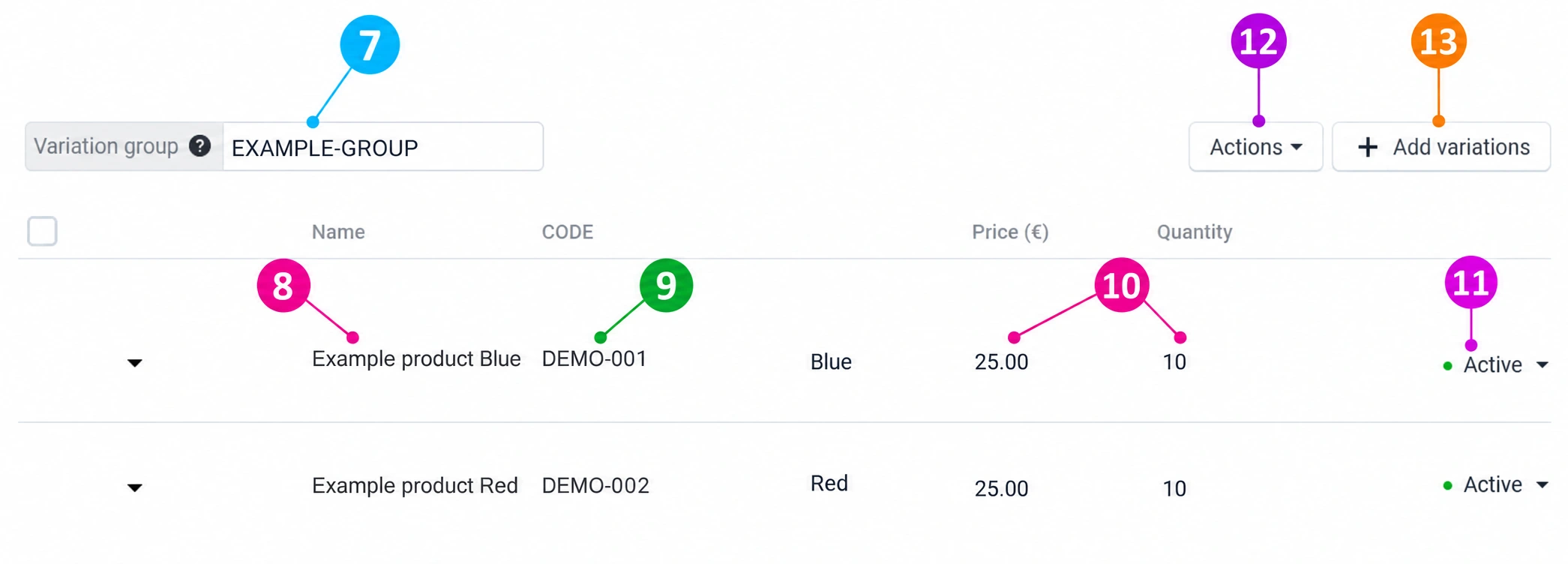
The screenshot shows actual controls from the English interface, while names, SKUs, amounts, and stock levels have been replaced with sample data. Actual products were not changed for the purpose of the screenshot.
- 7
Open the existing group after creation
Open any connected product and then the Variationstab. Instead of the initial message, you will now see Variation group and a table of the associated variants. The group code connects these items; it is not the SKU of an individual product. If you customize it, use Latin letters, numbers, a hyphen, and an underscore, and align the change with any import process.
- 8
Open and complete each variant
Each row represents a specific variant. Click the name or thumbnail of the corresponding product; for the currently open product, you can return to the Generaltab. Check the value of the variation feature, such as color or size, and the image assigned to that variant. The row name alone does not prove that all data has already been entered correctly.
- 9
Assign separate item SKUs
In the Code column, enter a consistent SKU for each variant. Example: FOTELJA-CREAM, FOTELJA-BLACK, and FOTELJA-NAVY. These are three separate products in the same group, not three names for the same SKU. The variant SKU must match the warehouse and integration when you use them.
- 10
Edit the price and quantity for each variant
Enter the final unit price and available quantity of the item in the row, then save using the main Save button at the top. Do not enter a price difference if the field expects a new amount. For each variant, check the active currency and inventory tracking in its data. If an import maintains the price or stock, align any manual change with that source beforehand.
- 11
Check the status of each variation
The status menu next to the row offers active, disabled, or hidden states. Being connected to a group is not the same as being ready for public sale. Status actions may take effect immediately, so change them only intentionally. For a variant without stock, check inventory tracking and the out-of-stock procedure; an active status does not guarantee an available quantity.
- 12
Use actions on the existing group
The Actions menu above the table contains variation management, feature editing, and group dissolution. Manage variations opens a product list limited to that group for review and available bulk changes. For features, check whether changing the definition also affects other products; involve the Connect team for shared settings.
- 13
Add a new color or size to the same group
Click Add variations. Create new variants or connect suitable existing products as in the initial procedure. Select only combinations that are actually available, then review the table again. Complete the SKU, image, price, stock, and status for the new rows; do not open a new group for every new color of the same model.
- 14
Select the default variant when necessary
In the actions menu next to an individual row, the command Set as default variationis available depending on the group type and your permissions. It determines the variant initially presented for the associated catalog item. Other variants may inherit some data from the default variant, so the change is not merely cosmetic. Grouping as separate catalog products and grouping under one catalog item produce different displays; align the feature purpose with the Connect team and check the product list.
- 15
Distinguish between detaching, deleting, and dissolving
In the row menu, Remove variation from group detaches the item as an independent product. Delete product deletes the product itself and is not a substitute for detaching it. Dissolve group in the top Actions menu separates all members into independent products and removes the switching between them on the public page. Before performing such actions, check the intended result, integrations, and existing links; for incorrect grouping, contact support first.
- 16
Save, reopen, and test the customer's selection
After making changes, check the saved rows and the public page. Select each color and size and compare the image, SKU, price, and availability. Add one sample combination to the cart without submitting an order and check that exactly that variant with the correct quantity was added. Also test an unavailable combination, the category display, and mobile. If anything differs, record the group code and the SKUs of the specific variants.
Additional reference: official instructions for managing a variation group.
Post-save check
- All variants belong to the same base product.
- Each combination has the correct values and stock.
- The customer's selection opens the expected image, price, and availability.









