

CONNECT HELPCENTER · PRODUCTS AND CATALOG
Connect the main item with the necessary components.
Required products are used for items that must be purchased together with the main product. An example is a basic device that requires a specific additional component.

Before you begin
Prepare the exact codes of the related products and check that they are actually required. An add-on that the customer can freely choose is better organized through a suitable option or bundle. Required linking affects the contents and price of the cart.
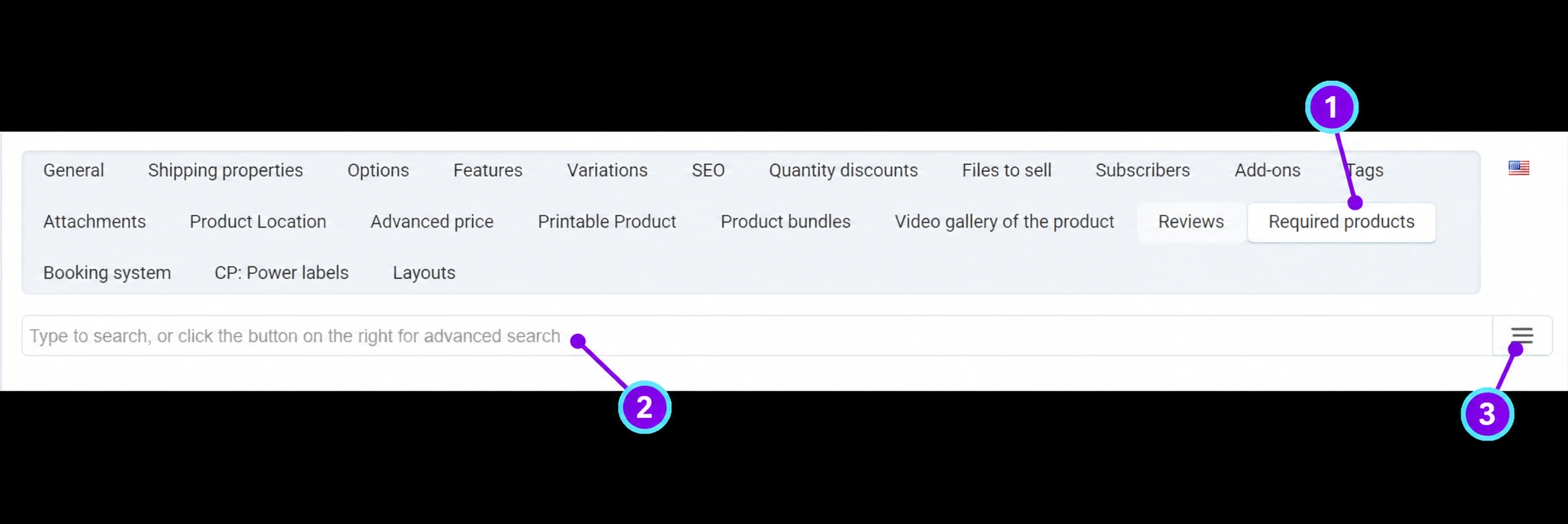
Screenshots use the English interface and sample data. Numbered labels connect the image with the localized explanations. Click the image to open a larger view. The availability of individual fields depends on the product type and your account permissions.
Step-by-step procedure
- 1
Open the required products tab
Open the saved item, then the Required products. In some translations, it may be labeled “Desired products”; in the English screenshot, it is identified as Required products. Its function is required linking, not the customer’s wish list.
- 2
Find the exact component
Enter the name or code in the search field. Compare the variant, status, and compatibility. Do not link a similar model if it does not match the main item. Check the relevant vendor context and the component’s availability.
- 3
Use the advanced selector when necessary
The icon on the right opens a more detailed product selector. Select the relevant item and review the final list of related products. Do not include the main product in its own list or create mutual links without checking with the Connect team.
- 4
Save the link and review the total offer
Save the product and check on the storefront that the description explains why the additional component is required. The customer should understand what goes into the cart and how it affects the total amount.
- 5
Check the cart behavior
Add the main item to a sample cart without submitting an actual order. Check the automatically added products, quantities, options, and total amount. In particular, check what happens if the component is unavailable or the quantity of the main product changes.
- 6
Align configurations before public activation
For more complex combinations, multiple required add-ons, or variant restrictions, send the Connect team a list of links and the expected scenario. Do not activate the configuration until verification confirms that the exact комплект can be purchased.
Post-save verification
- Each link has a clear business purpose and is compatible.
- The cart contains the expected components and amounts.
- An unavailable component and a change in quantity have been checked.









