

CONNECT HELPCENTER · PRODUCTS AND CATALOG
Categories that connect your offering.
Product categories organize the online store catalog into a clear tree. In this guide, learn how to find a category, understand its position, and read the settings available in Vendor Admin.
Opening, moving, removing, and editing categories is handled by Connect administration. Category settings are linked to SEO URLs, products, features, filters, fees, and storefront appearance. The vendor reviews them and submits a request for any required change.

Before you begin: a category is neither a product nor a storefront
Storefront indicates a store or marketplace context. Category is a group of products within that context. Product is an individual offer that the customer browses and, if purchasing is enabled, orders. The storefront name at the top of the tree is used for grouping and is not an additional category level.
Tree example: Sport → Sports Equipment → Balls. Sport is the first level, Sports Equipment the second, and Balls the third. Categories at the same level can have the same parent. The arrow next to a name indicates a branch that can be expanded or collapsed; indentation shows membership in a subcategory.
Screenshots use the English interface and sample data. Explanations are in the language of this page, and numbers connect the text to locations in the image. Click the image to open a larger view. The displayed toggles and values are examples of how to read the settings.
1–3 · Find and open a category
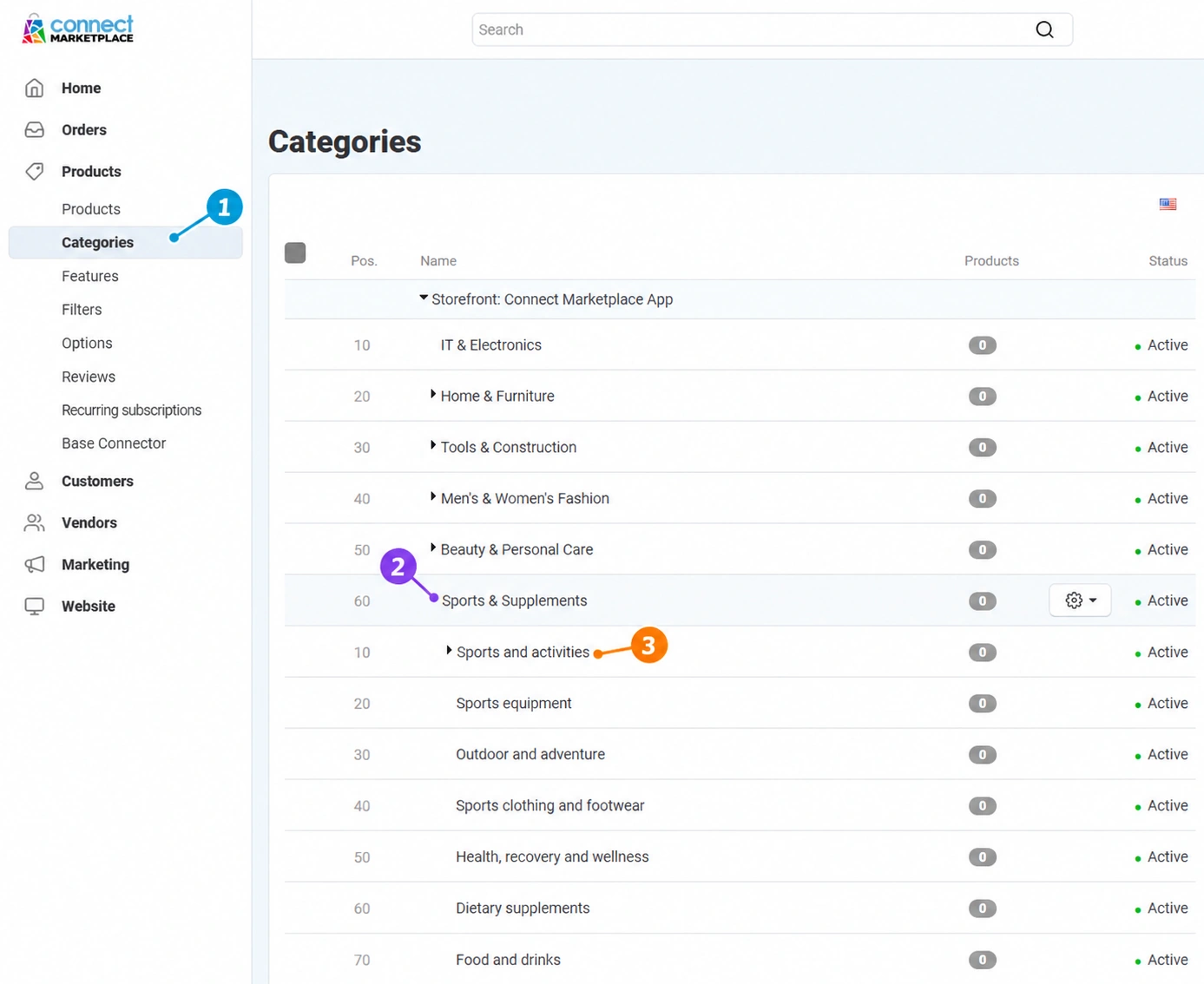
- 01
Open Products → Categories
In the administration menu on the left, select Products, then Categories. If you see groups by storefront, first find the appropriate storefront. Do not conclude that a category does not exist until you have checked the correct group and its collapsed branches.
- 02
Expand the required tree branch
Click the small arrow before the storefront or category. Expand branches to the desired level. Clicking the arrow opens subordinate items; clicking the category name itself opens its data. Position in the list and indentation are not the same: position determines order, while indentation determines the parent–child relationship.
- 03
Click the category name
Open the desired category and check its name, storefront, and position in the tree. The displayed product count and status refer to the list view; for the exact scope of the offering, open the corresponding product list. The same or a similar name in another storefront does not necessarily indicate the same category.
4–5 · General and SEO metadata
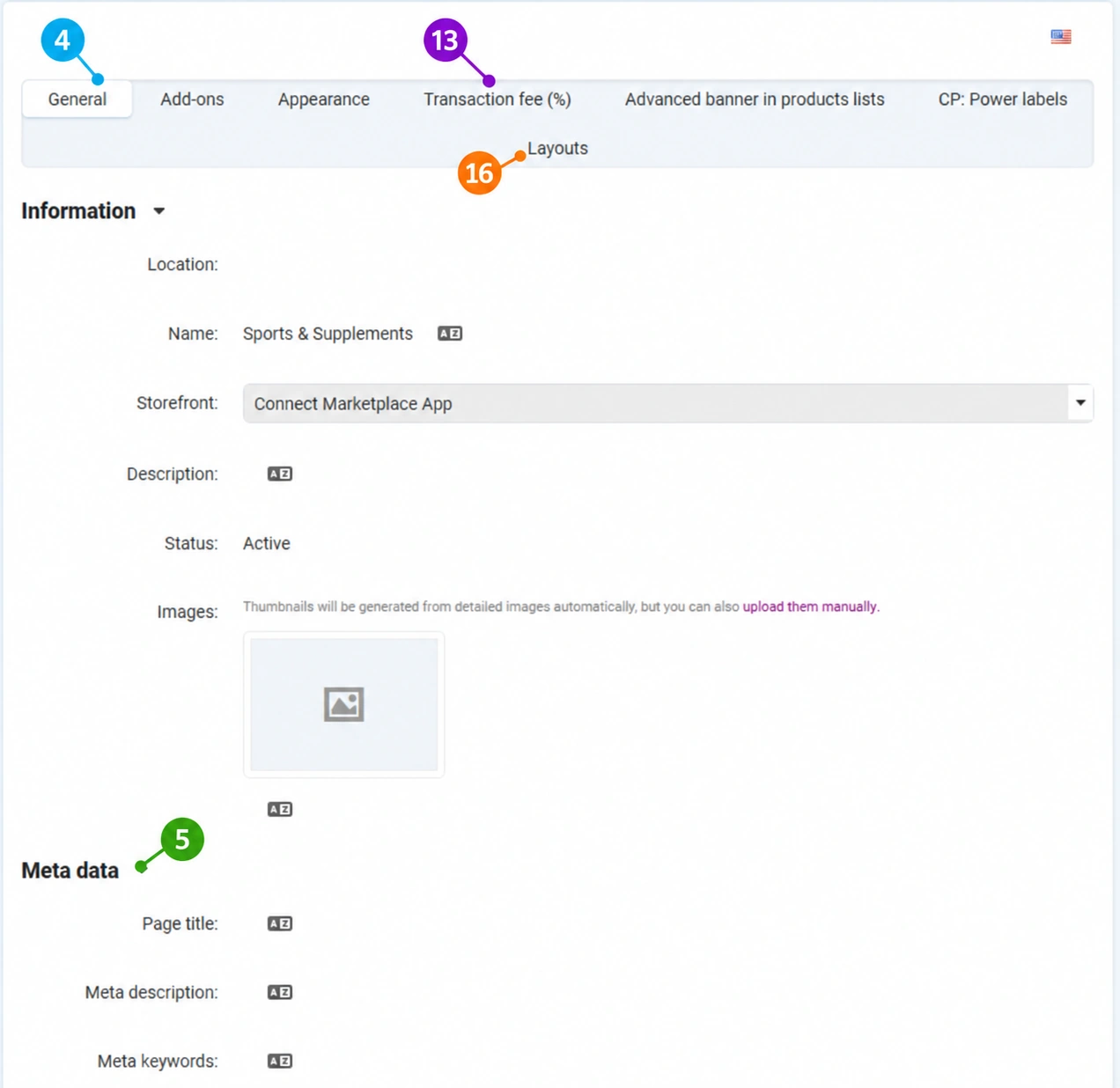
- 04
Read the category's general data
On the General tab, review the location or parent category, name, associated storefront, description, status, and image. A root-level category has no parent category. The name and description can have different language versions.
Active indicates an enabled record, Hidden excludes it from the usual navigation display, while Disabled indicates an unavailable category. Final visibility also depends on access, storefront, theme, and associated offering. Do not use the status to independently remove part of the shared catalog.
User groups, position, and creation date may be displayed lower down. User groups determine access restrictions, while position determines display order; they are not an SEO ranking or a level number.
- 05
Distinguish the page title from the category name
The metadata section contains Page title, Meta description and Meta keywords. The page title describes the document for the browser and search engines. The meta description summarizes the category content. These fields do not replace a quality description and product offering, nor do they guarantee a search ranking.
If you suggest a new name, also provide a brief explanation of the assortment. Connect administration aligns language versions and their connection to existing content.
6–11 · Add-ons: activations and related functions
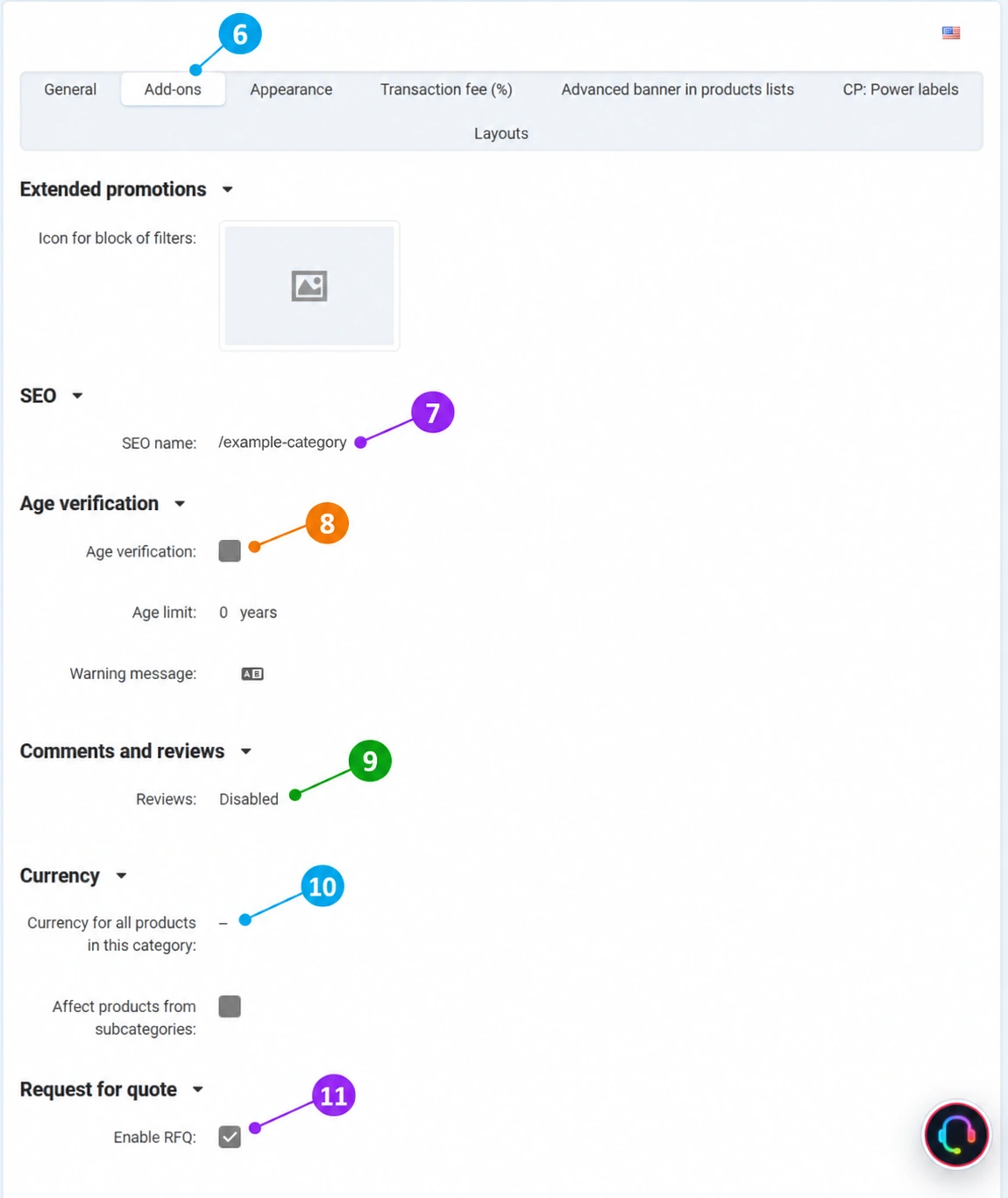
- 06
Review add-ons and promotion data
On the Add-ons tab, individual modules have their own sections. In the displayed example of expanded promotions, there is an icon for a filter block. The presence of an icon or tab does not mean that the category automatically has an active discount. A promotion requires an appropriate rule, conditions, period, and display, which the Connect team checks.
- 07
Check the category SEO name
SEO name is part of the category URL. It differs from the page title and the name displayed to the customer. Send category changes or moves to Connect administration so it can check existing links, redirects, and related resources. In the example in the image, the URL has been replaced with a sample name.
- 08
Read the age verification settings
The Age verification section contains activation, the age limit, and a warning message. A checked box shows that the setting is enabled; an unchecked box shows that it is disabled. The age limit and message text make sense within the context of the active function. For required age verification, provide the Connect team with the category scope and approved warning text.
- 09
Check comments and reviews
The comment settings show whether the function is disabled or which commenting or rating method has been selected. The value Disabled means that this setting is not enabled for the category. Category comments are not the same as reviews of individual products or vendors; request a change for the exact type of content.
- 10
Read the currency and subcategory scope
The Currency section displays the setting for products in that category, with a separate option to include products from subcategories. Such a change may affect multiple items. Do not interpret a change to the currency label as confirmation that prices have been mathematically recalculated: Connect administration must check what the active tool does with amounts, exchange rates, and the selected product scope.
- 11
Check quote requests
The Request for quote section has a separate activation. A checked option means that the category-level quote request setting is enabled; the actual customer display must also be checked against the module and product settings. A quote request is not the same as an immediately confirmed order. Tell the Connect team whether you want sales by purchase, by request, or an agreed combination.
12 · Templates and available views
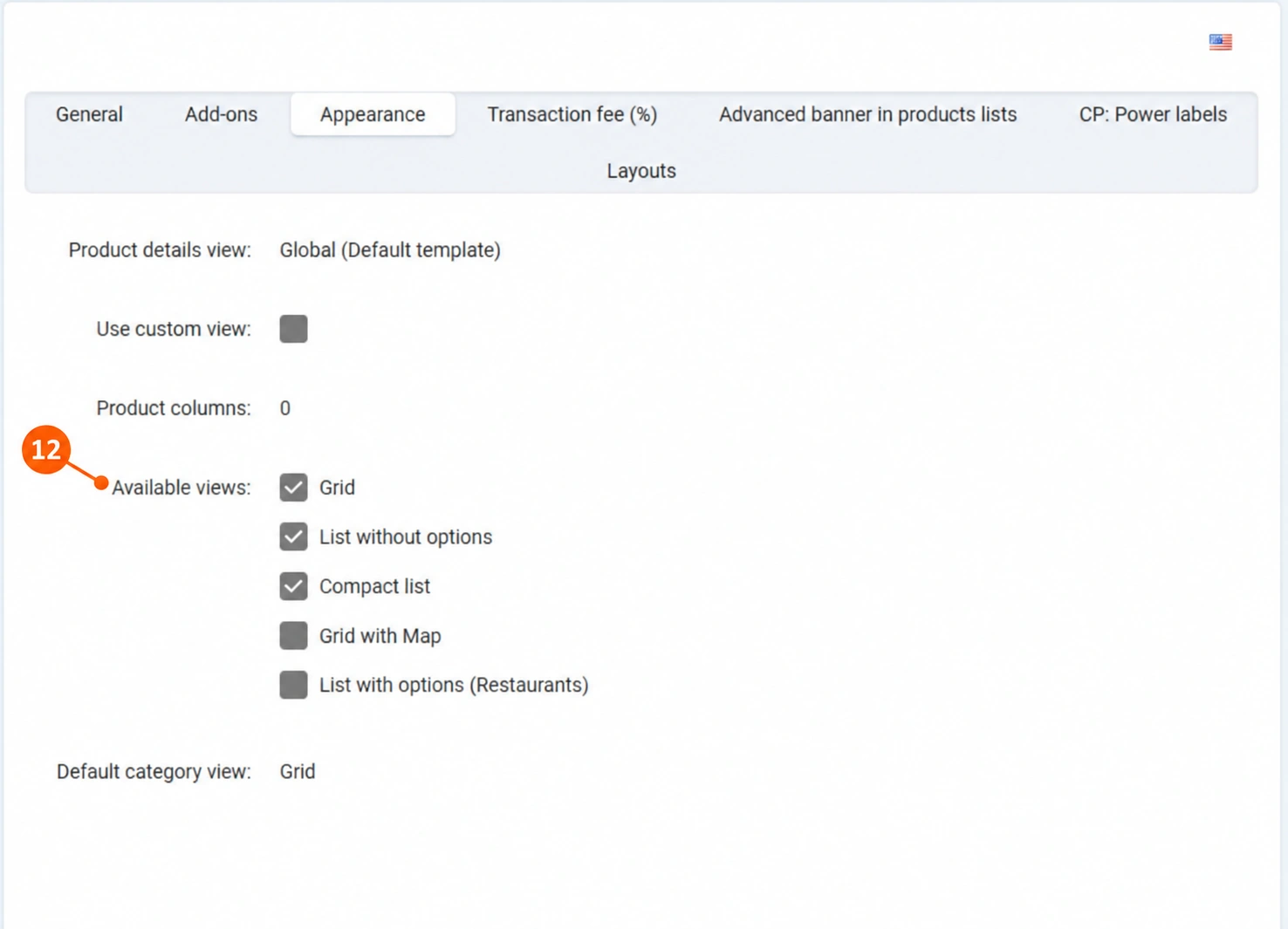
- 12
Read the category appearance tab
This section displays the product details template, use of a custom view, number of columns, available views, and the default category view. The value Global (default template) indicates a shared template selection. An unchecked custom view option does not mean that the category has no appearance; it means that this individual customization is not enabled.
The available views in the example include grid, list without options, compact list, grid with map, and list with restaurant options. Checked boxes show permitted views, while the default view is the one used initially. A map or restaurant view makes sense only for the corresponding offering and active functions. Do not change the template or number of columns outside the agreed CM design; send the request to the Connect team.
13 · Category fees
- 13
Review percentage fees
The Transaction fee (%)tab, marked with number 13 in the general data image, displays the vendor plan and the corresponding percentage. Different plans may have different values. A visible row for another plan does not confirm that this exact percentage applies to your account.
For interpretation of the calculation, provide the Connect team with your plan, category, and an example product or order. Administration checks the applicable fee, basis, and other agreed conditions. The vendor does not change percentages here; this table is not a customer discount and does not itself change the selling price.
14 · Advanced banners among products
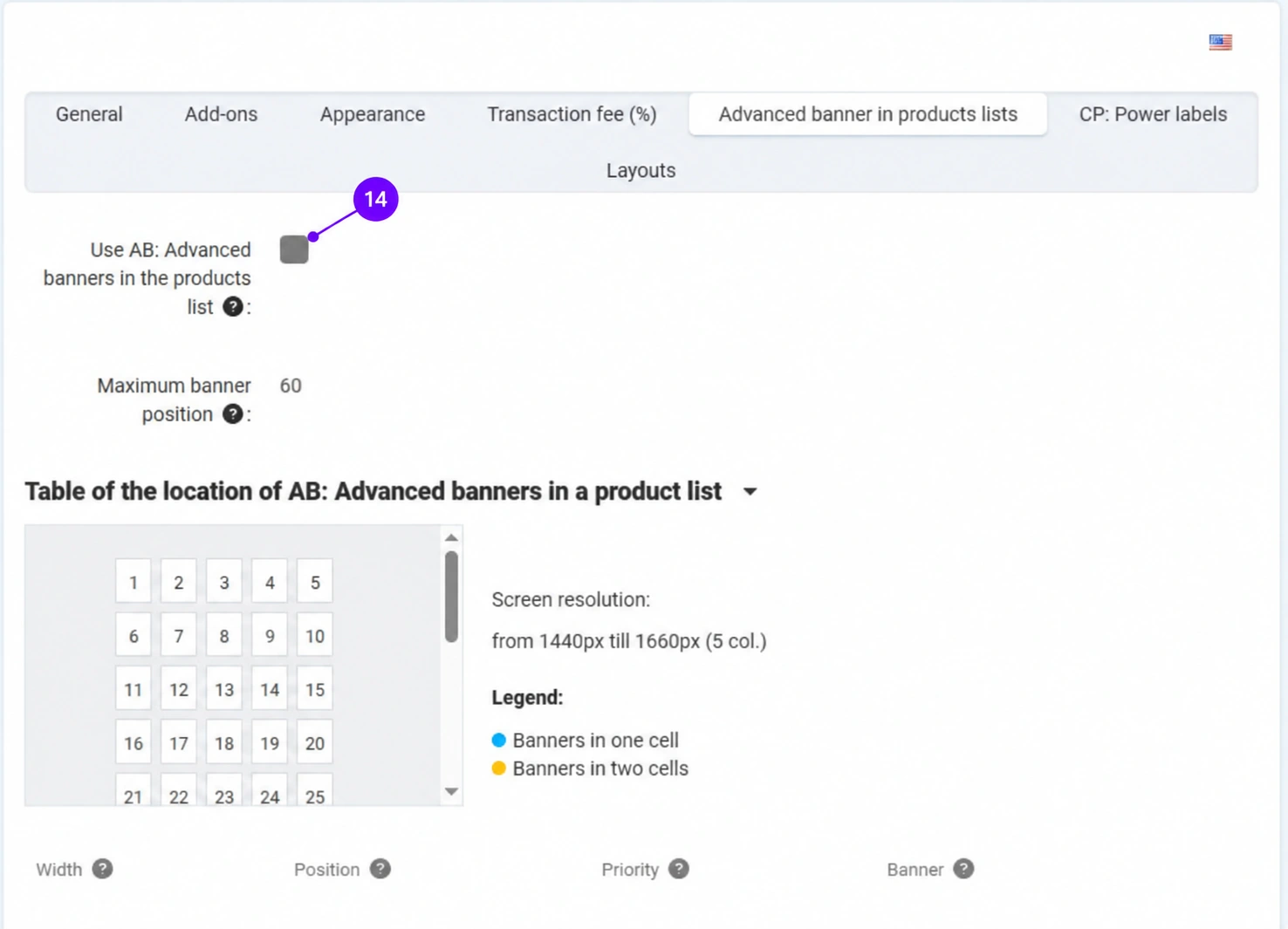
- 14
Read banner activation and placement
In the Advanced banners in product lists tab, you can see whether their use is enabled. The maximum banner position indicates the position limit in the layout, not the number of active banners. The diagram shows positions in the grid for a particular screen width.
The table below the diagram connects banner width, position, priority, and selected banner. An empty table is not proof of an active campaign. For a new banner, send the material, destination link, categories, and display period. Connect administration prepares the layout and checks the display on desktop and mobile.
15 · Automatic application of product labels
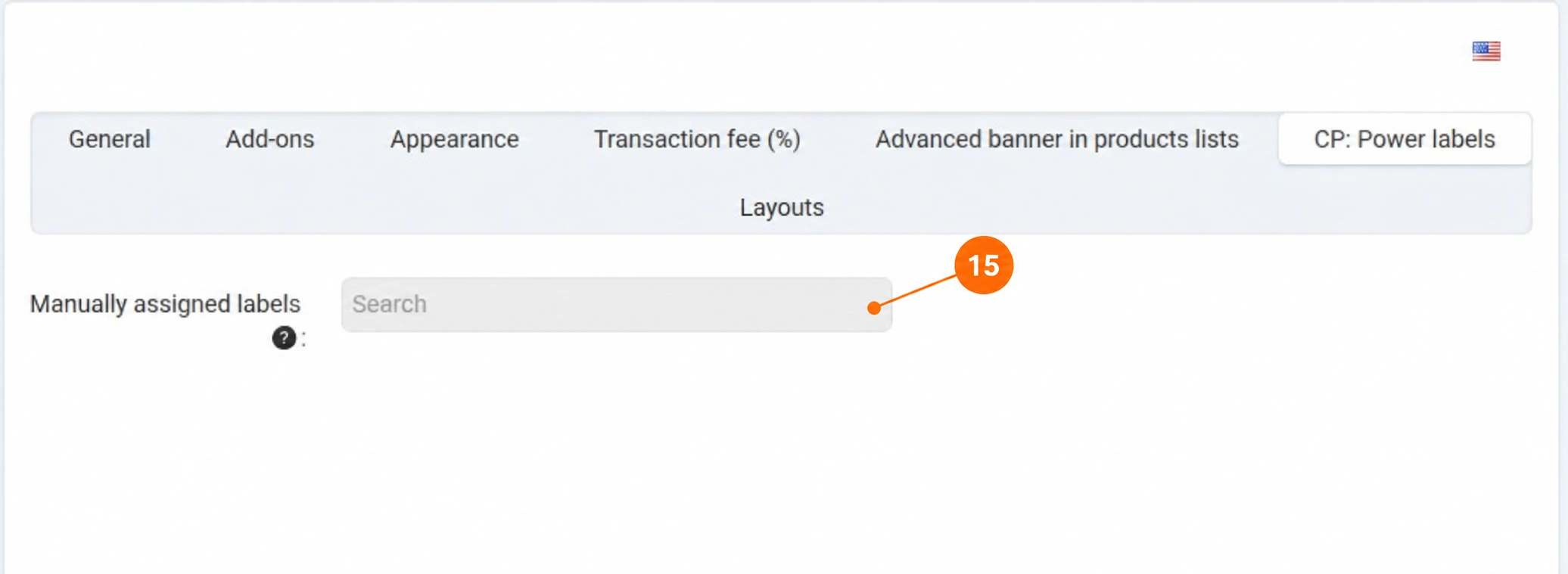
- 15
Check category labels
The Labels tab displays labels assigned to the category. This allows labels to be applied to products in that category according to the module rules, without adding them individually to every item. An empty selection means that no category label is directly assigned in that field; the product may still have another label under a different rule or individual assignment.
Do not assume that the same label is transferred to all subcategory branches without checking. Tell the Connect team the exact scope and expected text, and verify the application on several products. The label itself does not activate a discount or change the price.
16 · Category appearance blocks
- 16
Review the appearance in the correct context
The Layoutstab, marked with number 16 in the general data image, opens an overview of the block layout. Check which layout or storefront is selected. Views for phone, tablet, and desktop are available; the layout may be inherited from the shared configuration.
A message about the default configuration means that the shared layout is displayed, not that the page must be empty. Do not start a custom configuration just for the purpose of viewing it. Specify a banner, text block, filter, or other element to the Connect team together with the category name, storefront, desired location, and final content.
How do you request opening, moving, or removing a category?
Send one consolidated request with the proposed name, existing or desired path, storefront, and product examples. For a move, state the old and new paths. For removal, specify where existing products should be classified and which related content should be reviewed.
Connect administration checks whether an appropriate category exists, determines the relationship with the parent, aligns names and SEO data, checks related features and filters, and agrees on the display and activations. Changing the tree is not merely moving a row visually. After confirmation, check the path, category availability, products, and storefront display.
Example request: “Please open the Balls category under Sport → Sports Equipment in our storefront. It should contain footballs and basketballs. We are attaching a list of items and a proposed description. Please check the related features, filtering, and SEO URL.”
If something does not look as expected
- You cannot see the category: check the storefront, expand the branches, and provide support with the exact name or ID.
- Fields are grayed out: the preview view in Vendor Admin does not grant editing permissions; send a request to Connect administration.
- The tab exists, but the function is not visible to the customer: activation, associated content, permissions, and the storefront are checked, not just the tab name.
- Incorrect fee, currency, or label scope: specify the category and a specific product; do not try to correct shared settings by changing unrelated data.









