

CONNECT HELPCENTER · PRODUCTS AND CATALOG
Find items. Edit exactly what you need.
The Product overview in Vendor Admin allows you to search the catalog, combine filters, edit prices and inventory, and make bulk changes. This guide explains the difference between displayed results, selected products, and the scope of a global update.
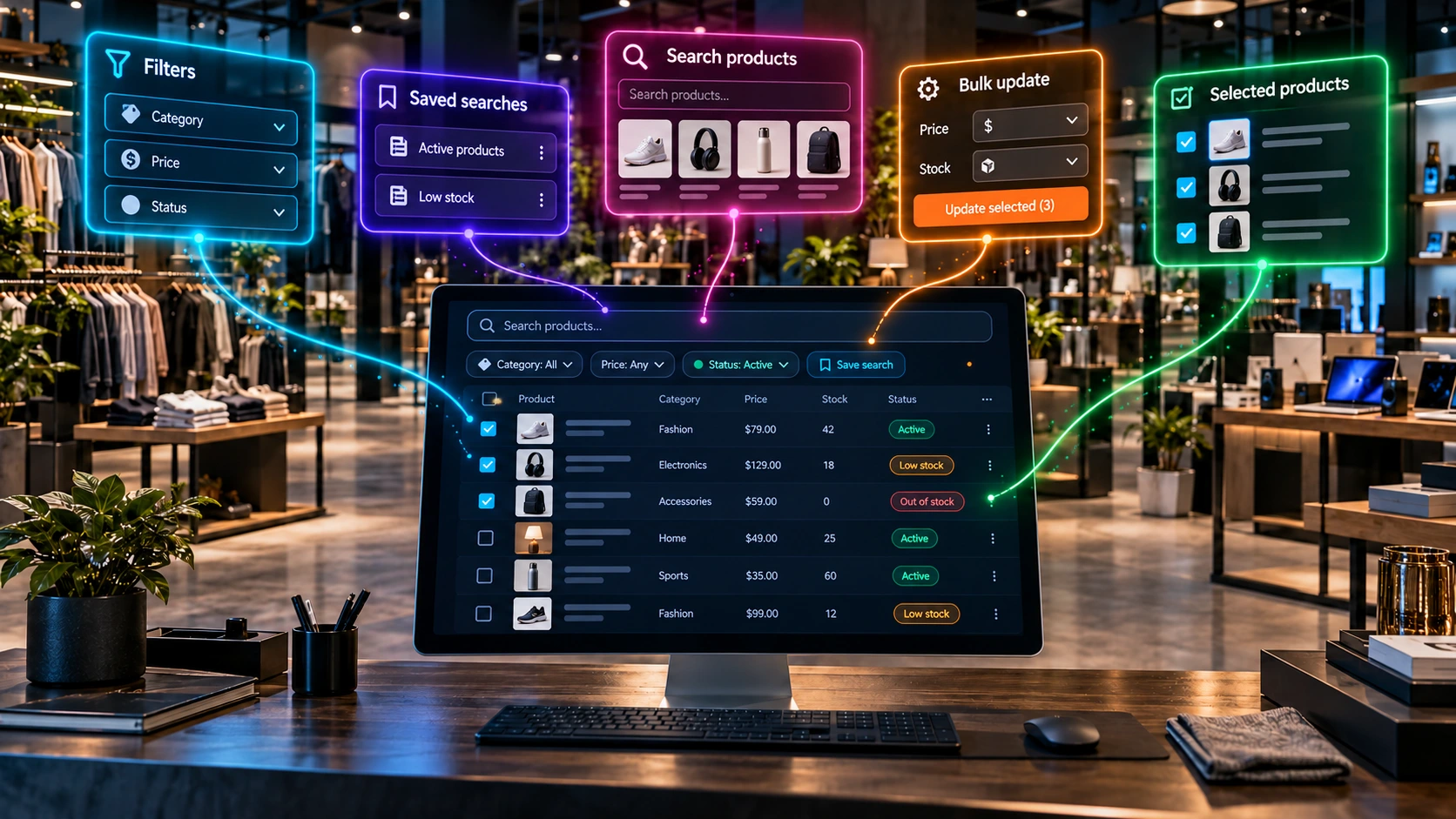
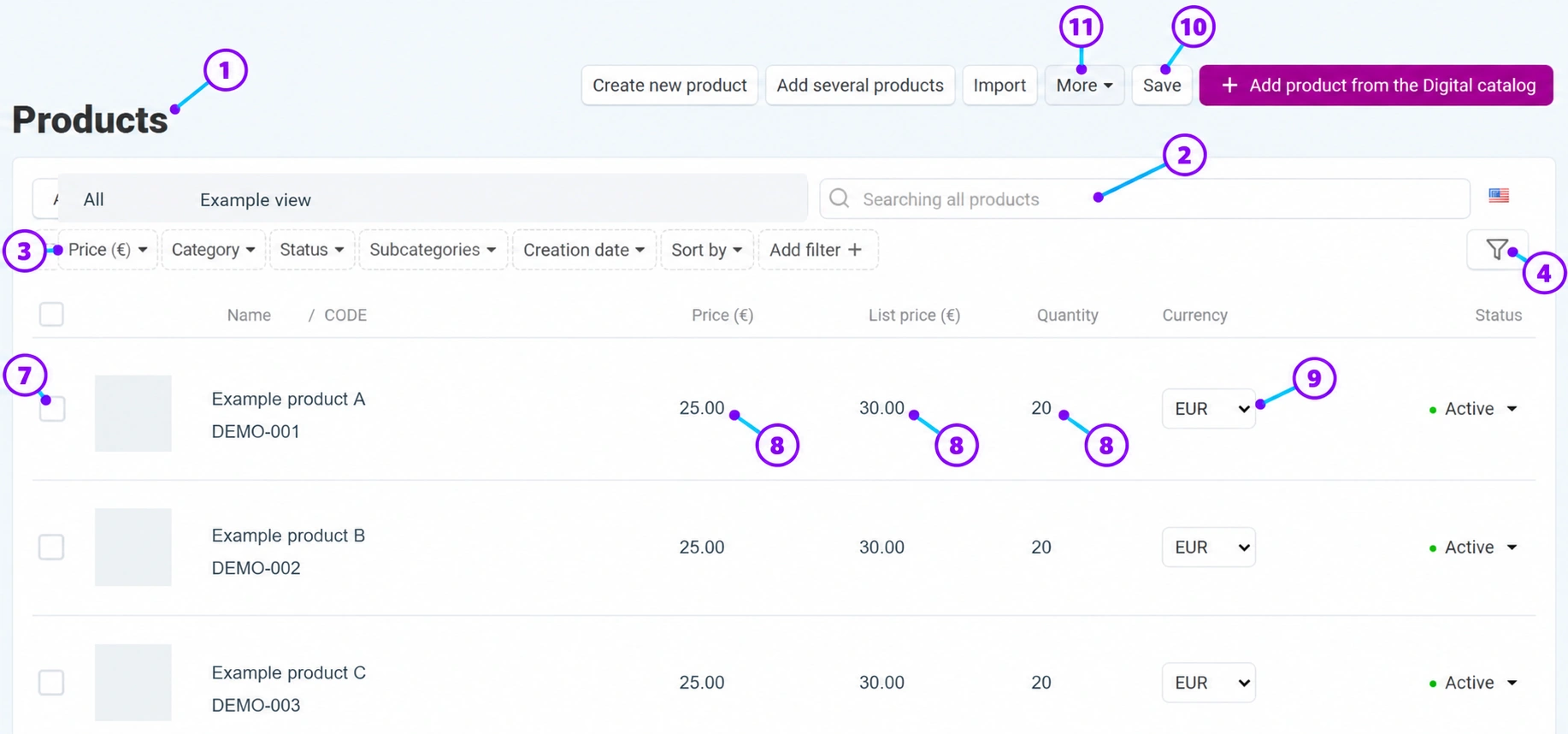
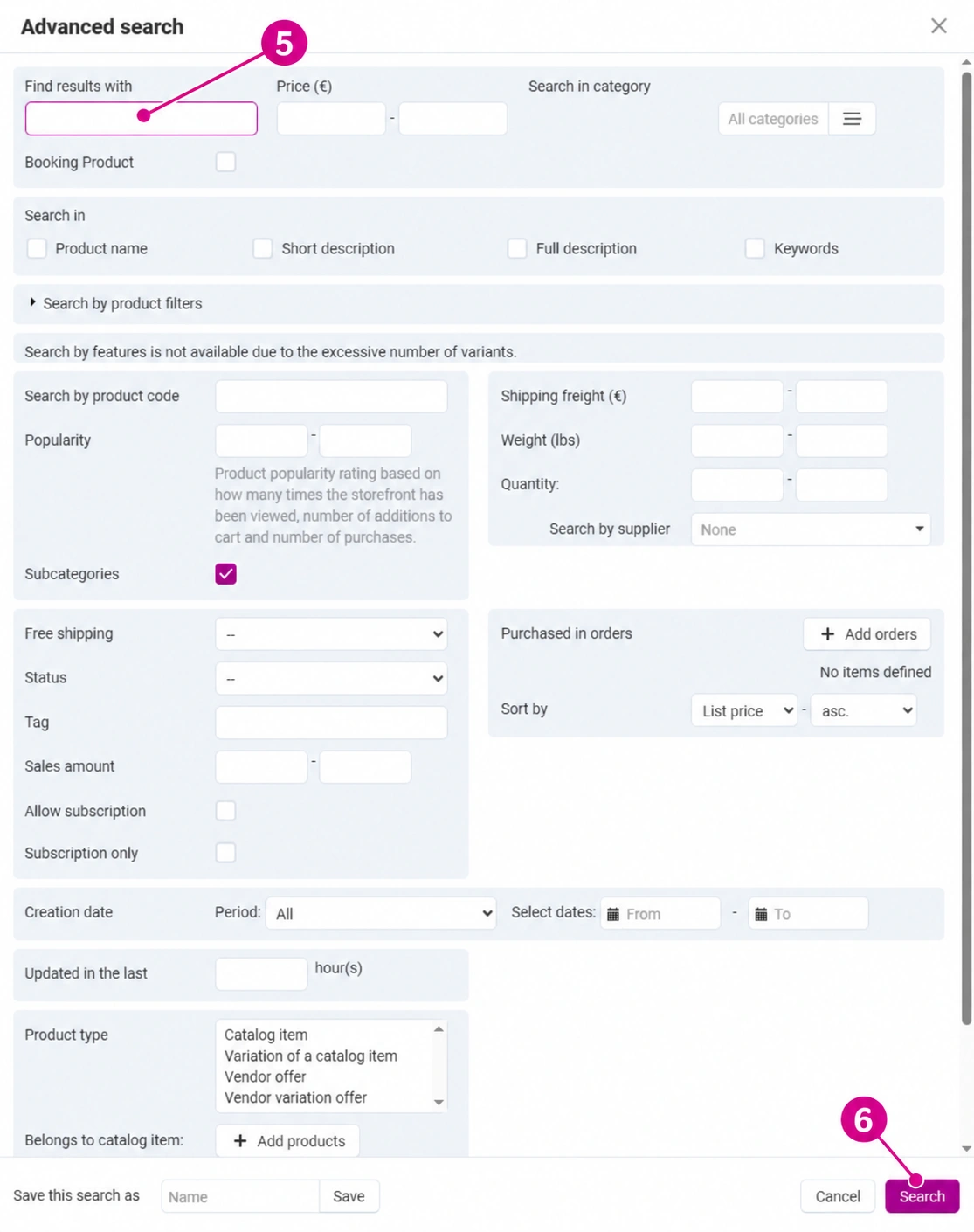
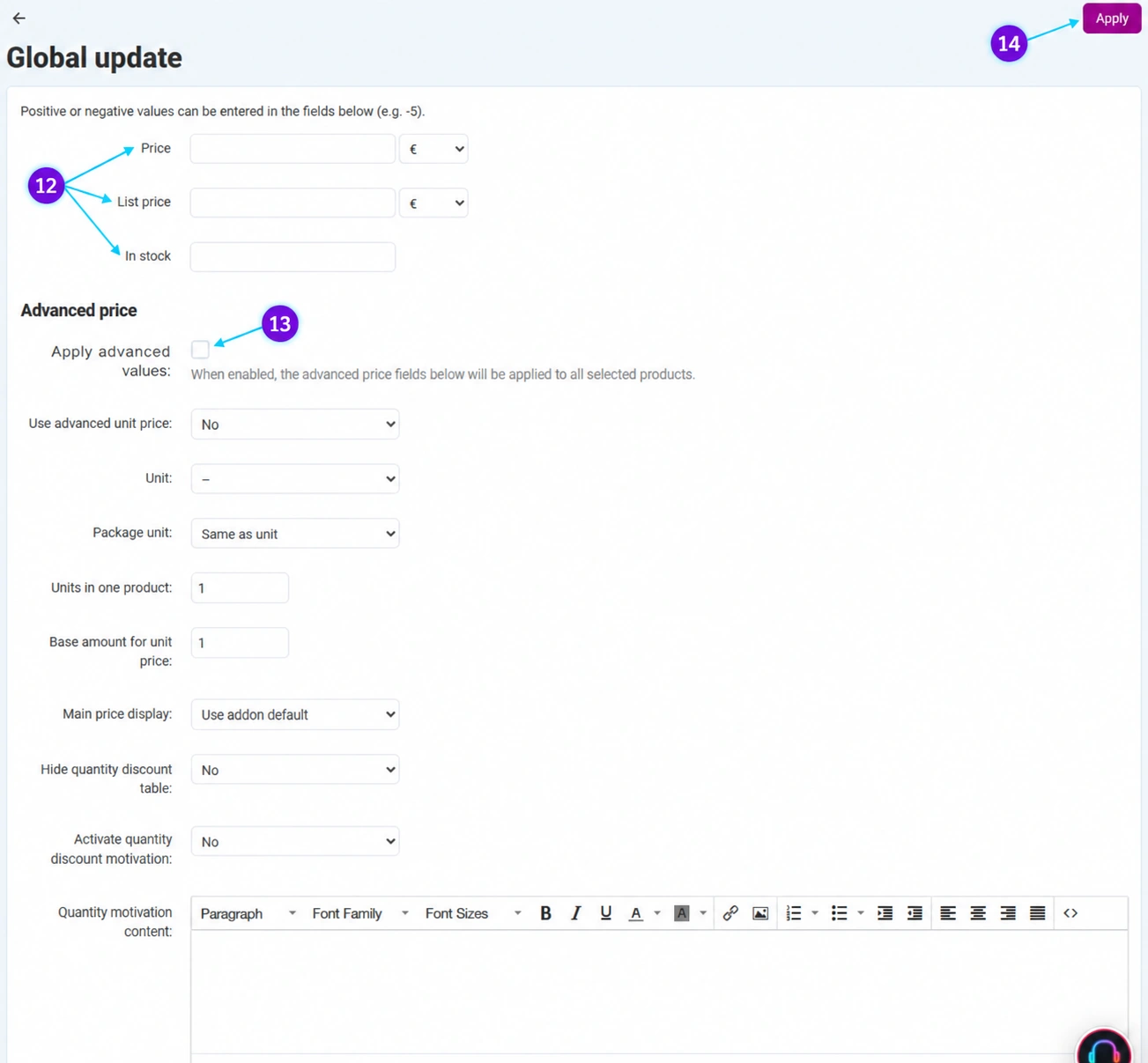
The images use the English interface and sample data. The numbers link the controls in the image to the localized explanations. Click an image to open a larger view.
1–4 · Opening the list and quick filters
- 1
Open Products → Products
In the left-hand menu, select Products, then open the product list. The item name opens its editing page. The product code identifies the item and differs from its name and internal ID. Check your vendor context before working.
- 2
Search the catalog and check the saved view
Enter the desired term in the search field and confirm the search. The tabs above the list represent saved views; they may contain predefined conditions. If you cannot find a product, return to the overview of all products and remove old conditions. Search is not a command for changing data.
- 3
Combine quick filters
Narrow the list by price, category, status, subcategories, or creation date. Select a criterion and direction in the sorting menu. The add-filter button opens other available criteria. When selecting a category, check whether you are also including subcategories: without this, expected items from lower levels may be omitted. Check the returned results after each combination.
- 4
Open advanced search
Click the funnel icon to the right of the quick filters. This opens additional conditions, not bulk editing. Administrative filters help find items in catalog management; they are not filter settings that customers see in the storefront.
5–6 · Advanced search and saving views
- 5
Specify the required conditions
You can enter a phrase and select where to search: name, short or full description, and keywords. For a precise item, use the product code. Price, inventory, weight, shipping cost, popularity, and quantity sold ranges are available, along with status, category, dates, and other criteria from active modules. Check the displayed weight unit and currency next to the amounts. An empty range does not automatically mean zero. The product type fields distinguish a catalog product, a variation, and a vendor offer; use them when you intentionally want to search for that type of record.
- 6
Run the search and save the view if needed
Click Search, then check several results and the number of pages. At the bottom of the window, you can name and save a frequently used search. This saves the conditions, not a copy of the catalog. If a combination returns no results, remove the conditions one by one. In the displayed system, feature search may currently show a message that it is unavailable because there are too many variants; in that case, use the category, code, and other available conditions or request assistance.
7–11 · Changes in the list, currency, and bulk actions
- 7
Select items for a bulk action
The checkboxes next to the rows are used to select products. After selecting them, read the displayed number and the available bulk actions. Selecting items on the current page does not by itself confirm that all results across all pages have been selected. For bulk editing, select the appropriate action and only the necessary fields. Check the scope before confirming.
- 8
Edit the price, recommended price, or inventory
Where the field is available for entry, you can enter a new selling price, recommended price, and quantity in the row. In the list, enter the new amount, not the difference. The recommended price is not a second field for the same selling price. Inventory determines the available quantity when inventory tracking is enabled; changing the quantity alone does not resolve other product availability conditions.
- 9
Distinguish the product's active currency from price conversion
The currency column displays the item's active currency. Before making a change, prepare the correct price in the target currency and check how it behaves on the product. The currency label alone does not mean that the existing number is an automatically converted amount. For bulk conversion, exchange-rate selection, and coordination with imports, contact Connect administration; after the change, compare the price and currency in the administration and storefront.
- 10
Save the entered values and check again
For changes to fields in the list, use the Savebutton. After the success message, reopen the product and check the saved values. Some actions in the status menu may be applied immediately; therefore, do not change them for testing purposes. A contracted import or external integration may later overwrite the price and inventory, so agree on the primary data source before making manual changes.
- 11
Review additional tools
The More menu contains export, export found, global update, and expected products. Export found uses the search results, while the general export has its own field and scope selection. Import is a separate process and is not the same as saving rows. Adding a new product, multiple products, and products from the Digital Catalog are covered in separate guides.
12–14 · Global price and inventory updates
First define the scope. In the Products section at the bottom of the form, the message “All products are included” means a broad scope of your available products. For a limited change, use Add products and review the selected list. Do not take prior list filtering as proof that the global form is limited to the same items.
- 12
Enter a price or inventory change
Open More → Global update. Here, a positive or negative value represents a change to the existing value. For prices, you select a fixed amount or percentage. Example: a price of 100 with a −10% change becomes 90; a change of +5 in the currency increases the amount to 105. Quantity +5 adds five items to the existing inventory. This differs from entering the final value in the product row. Do not enter arbitrary values for fields that should remain unchanged.
- 13
Enable additional settings only intentionally
The advanced pricing section has a separate checkbox for applying values. Enabling it may apply shared settings for units, packaging, tax display, and messages to the selected products. If you are changing only the basic price, do not enable this section incidentally. Labels have a separate section of the form. The advanced pricing and labels guides provide more details.
- 14
Apply once and check the result
Read the selected products, sign, unit, and all included sections again, and only then select Apply. Applying a percentage or fixed increase repeatedly changes values that have already been changed. After the success message, check several items and the price display for customers. If the result differs from expectations, stop further updates and send support the scope and the exact change entered.
Quick check before working with a larger catalog
- Prepare an export or a verified source of the initial prices and inventory.
- You have determined which items you are changing and which system is the data source.
- You distinguish a final entry in the list from a change in the global form.
- The currency, sign, unit, and tax display have been checked.
- After saving, you compared the administration and storefront.









