

CONNECT HELPCENTER · PRODUCTS AND CATALOG
Prepare data for the Digital Catalog.
The Digital Catalog is being prepared as an additional way to connect your offering with catalog data. This page explains how to prepare and what to check before importing products.
Before you start
The module is still being completed. We do not describe the final procedure here because it has not yet been confirmed for your account. An existing catalog connection and Common products do not automatically mean that all planned Digital Catalog sources and capabilities are available.
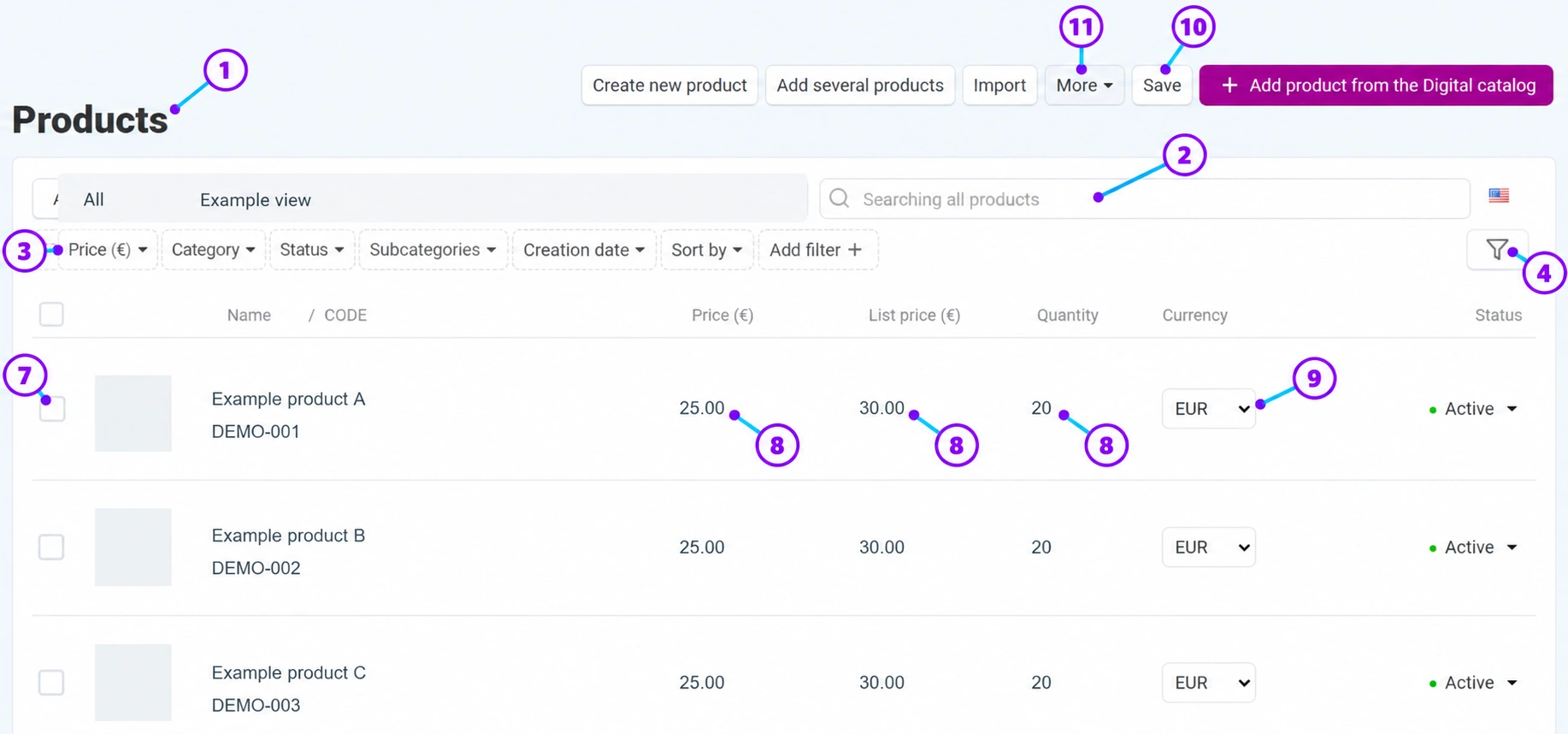
Screenshots use the English interface and sample data. Numbered labels link the image to the localized explanations. Click the image to open a larger view. The availability of individual fields depends on the product type and your account permissions.
Step-by-step procedure
- 1
Open the product overview
The starting point is Products → Products. The product overview shown in the guide displays a button for adding products from the Digital Catalog. The numbers on this shared image refer to the product overview guide; here, it is used to identify the starting screen.
- 2
Prepare the offer identification
For the desired item, prepare the brand, model, manufacturer’s part number, and GTIN when available. Record the packaging, sales unit, currency, your own price, and availability. This data helps distinguish an exact match from an approximately similar product.
- 3
Agree on the source and usage rights
Tell the Connect team which catalog or supplier you want to use and whether you have the right to use the descriptions, photographs, and technical data. Clearly define which source maintains the name and characteristics and which maintains your prices and inventory. Do not assume that importing records includes automatic, ongoing synchronization.
- 4
Wait for the procedure confirmed for your account
Before activation, the Connect team confirms the availability of the source, access, and data scope. After that, check the imported categories, images, features, language, price, and inventory before publishing publicly. Final checks and screenshots of the specific procedure will be added after the module is completed.
What can you use right now?
For manual entry, follow basic product addition. For an existing shared record, use Common products. Do not create multiple identical records while the catalog connection is being verified.
Check after saving
- The data source and usage rights have been agreed upon.
- The owner of the price and inventory has been defined.
- The availability of the module for your account was confirmed before work began.









