

CONNECT HELPCENTER · PRODUCTS AND CATALOG
Accurate data for calculating shipping.
Product weight, additional charges, and packaging details are part of the shipping process. Learn where to enter them and how to check the result in the cart.

Before you start
First, create the product. Prepare the item weight for shipping and the packaging dimensions, and check which unit of measurement the administration uses. Product settings do not replace the configuration of the store's shipping methods.
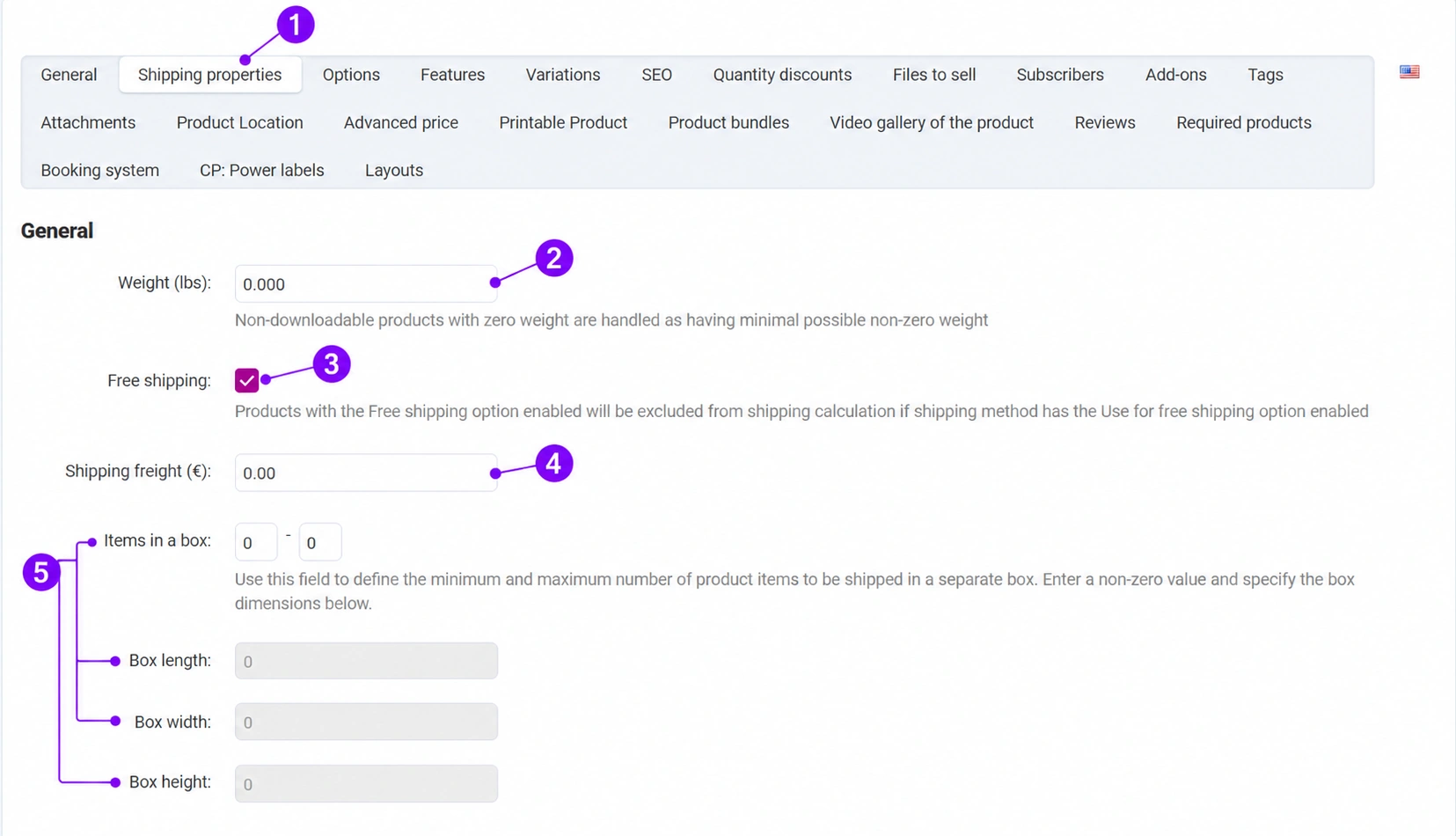
Screenshots use the English interface and sample data. Numbered labels connect the image with the localized explanations. Click the image to open a larger view. The availability of individual fields depends on the product type and your account permissions.
Step-by-step procedure
- 1
Open the shipping settings tab
In Products → Products open the item and the Shipping settings. If it is not available in the initial entry, first create the product, then return to editing.
- 2
Enter the weight in the displayed unit
The unit shown in the image is lbs, so the number must not be interpreted as kilograms. Enter the weight in your system's unit. For non-digital products, zero weight is treated as the smallest positive weight when calculating shipping; therefore, zero is not a way to automatically provide free shipping. Contact the Connect team for the correct unit settings.
- 3
Align free shipping with the shipping method
The free-shipping checkbox excludes the product from the calculation only with a shipping method that supports the corresponding setting. The product label alone does not confirm that every shipping method and every cart will have a total cost of zero. Specifically check the cart with other regularly chargeable items.
- 4
Set an additional charge when needed
The additional shipping charge field is intended for an amount associated with the product. Check the displayed currency and the agreed calculation logic with the Connect team. Do not enter the product's sale price or the shipping service's entire tariff here if it already exists in the shipping method.
- 5
Enter the number of pieces in the box and the dimensions
The piece range defines the minimum and maximum number of units shipped in a separate box. To apply the corresponding dimensions, enter a non-zero value as instructed by the form. Then fill in the box length, width, and height. If the dimensions are grayed out, check the pieces-per-box fields and the method configuration.
- 6
Save and check the calculation
Click Save. Check one and multiple units, different combinations of items, and a shipping address for which the method is available. Do not place a real order just to check the cost; use the agreed test-order procedure for the final test.
Check after saving
- The weight was entered in the correct unit.
- The dimensions and number of pieces correspond to the actual packaging.
- Free shipping and the additional charge were checked with an active shipping method.









