

CONNECT HELPCENTER · PRODUCTS AND CATALOG
Describe the product with structured data.
Product features turn characteristics such as color, brand, material, and dimensions into data that can be displayed consistently and used in the catalog.

Before you start
Prepare verified manufacturer values, units, and item identification data. Available features also depend on the product category. Do not add another name for the same feature just because you do not recognize the existing translation.
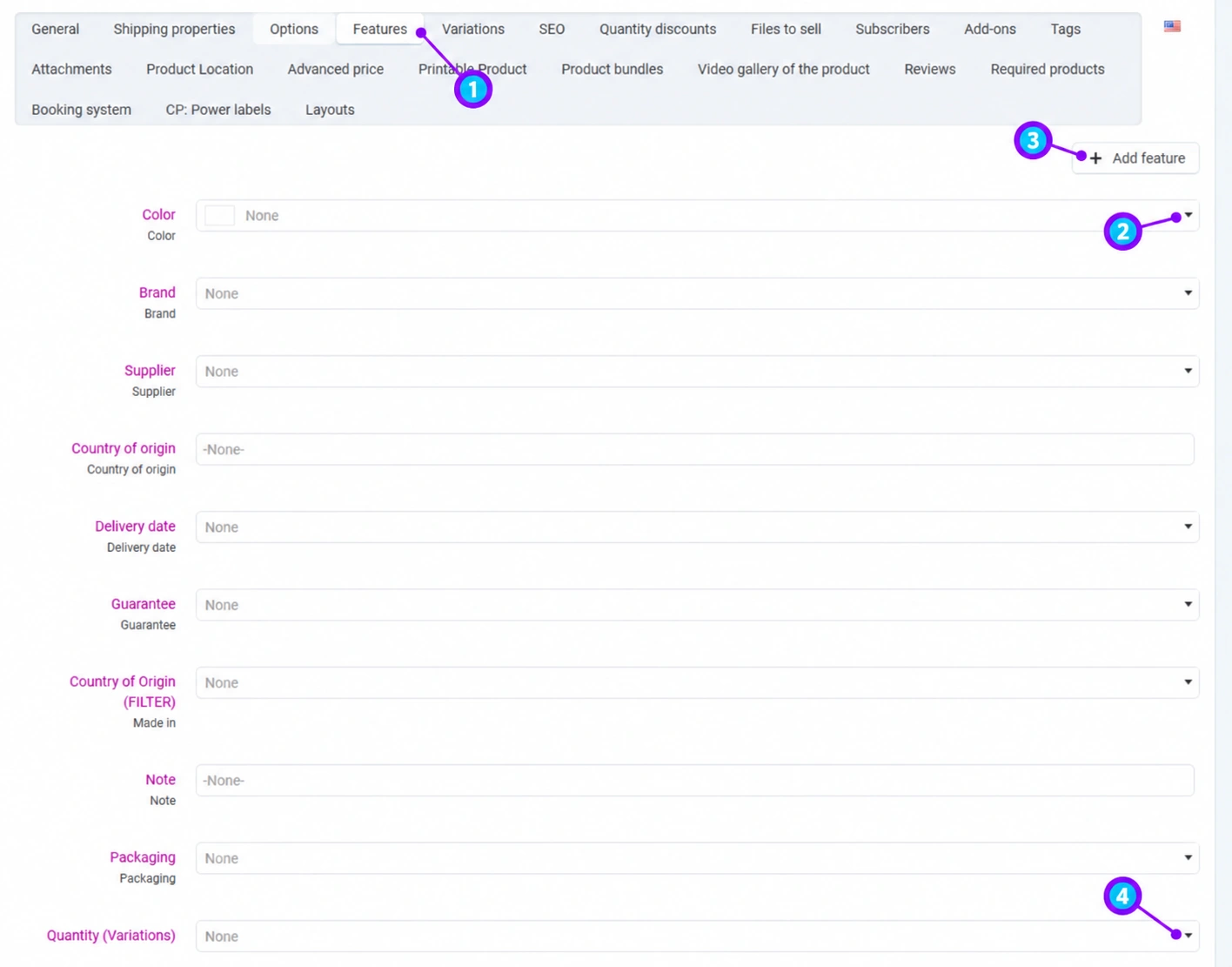
Screenshots use the English interface and sample data. Numbered labels connect the image with localized explanations. Click an image to open a larger view. The availability of individual fields depends on the product type and your account permissions.
Step-by-step procedure
- 1
Open the Features tab
Open the saved product and select Features. Check the main category: incorrect classification may offer the wrong set of features. The feature name for administrators may be displayed alongside the name intended for customers.
- 2
Select or enter a value of the appropriate type
For a menu, select an existing value, and for a free-text field, enter verified data. Enter numbers in the agreed unit, without mixing centimeters and millimeters or different package sizes. If the product does not have the data, do not make up a value just to fill in the field. A product code is not automatically a GTIN; copy identifiers from a reliable source.
- 3
Check whether the required feature exists
The Add feature button is used to add an available feature within your permissions. First search the existing definitions. For a new shared feature or a value you cannot select, send the Connect team the name, data type, unit, examples, and categories. This preserves consistency across filters and languages.
- 4
Distinguish descriptive and variation features
A feature used for variations serves to distinguish versions within a group. An ordinary descriptive data point is not automatically a variation criterion. Do not enable a field with a name that mentions variations without a prepared structure. For colors and sizes with their own inventory, follow the variation guide.
- 5
Save and check the customer view
Click Save, reopen the product, and check the values. On the storefront, review the features section and the relevant category filters. Entering a feature does not guarantee that a public filter has already been set up for it; this depends on the catalog configuration.
- 6
Request definition corrections in the right place
If the name, unit, or available list is incorrect, send a request to the Connect team. Do not conceal an incorrect feature that still affects search, export, or variation selection by using the product description. When changing the category, check the warnings about features that will no longer be available.
Example of a consistent entry
For a bag, use the brand from the existing menu, the color from the agreed list, and dimensions in the same unit. Do not enter the same color as “blue,” “plava,” and “plavo” in three new values: localized names should belong to the same defined value.
Check after saving
- The values match the item's actual version.
- Units are consistent, and empty data has not been replaced with made-up values.
- The public view and filter have been checked separately.









