

CONNECT HELPCENTER · PRODUCTS AND CATALOG
Define the price based on the quantity purchased.
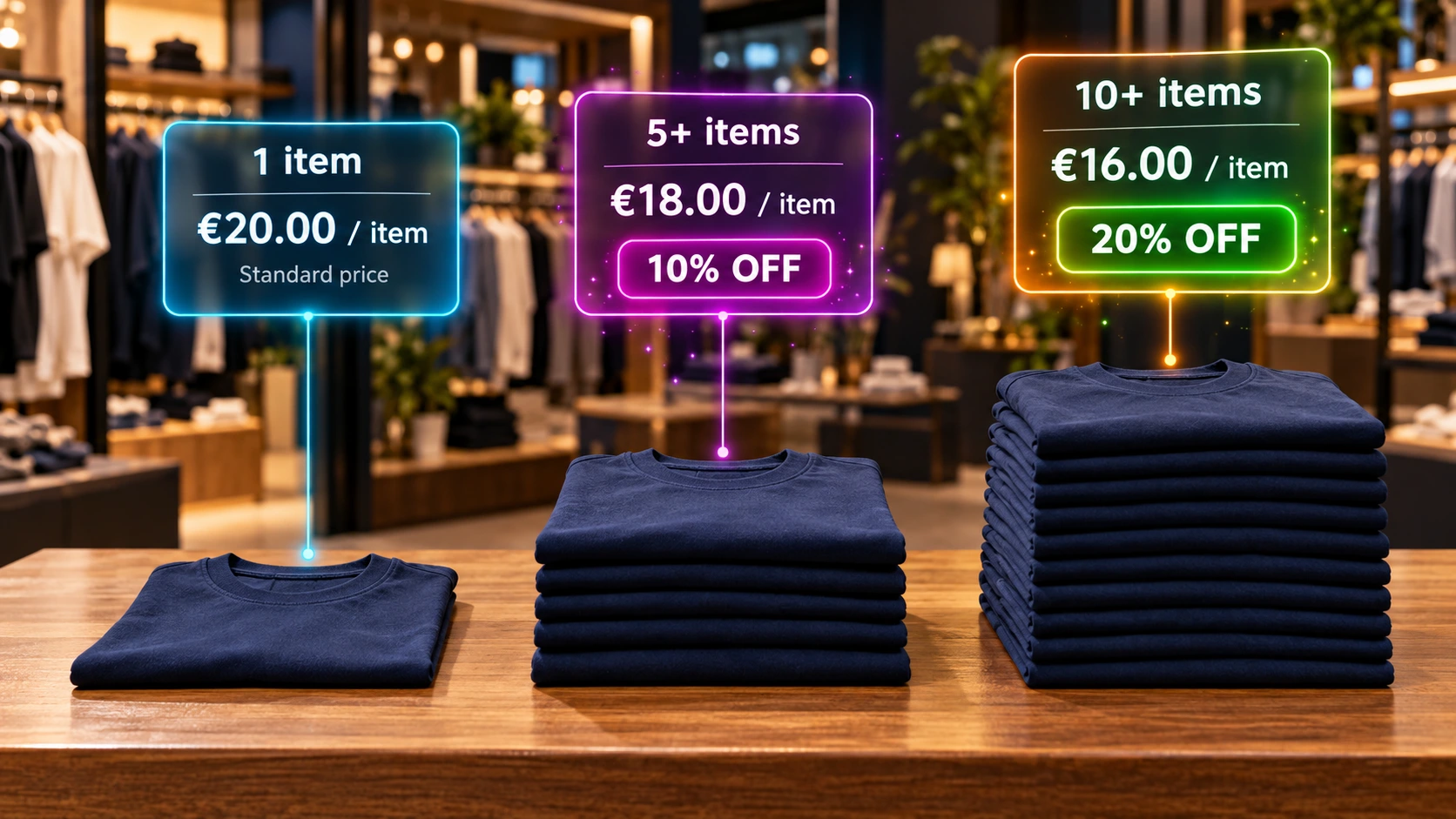
A quantity discount gives the customer a different price when they reach the specified number of units of the same product. Distinguish the final unit price from the percentage reduction.
Before you start
Prepare the quantity thresholds, price or percentage, and the user groups eligible for the benefit. First check the base selling price. This procedure does not represent an automatic discount on all different products in the cart.
Screenshots use the English interface and sample data. Numbered labels connect the image with the localized explanations. Click the image to open a larger view. The availability of individual fields depends on the product type and your account permissions.
Step-by-step procedure
- 1
Open Quantity Discount
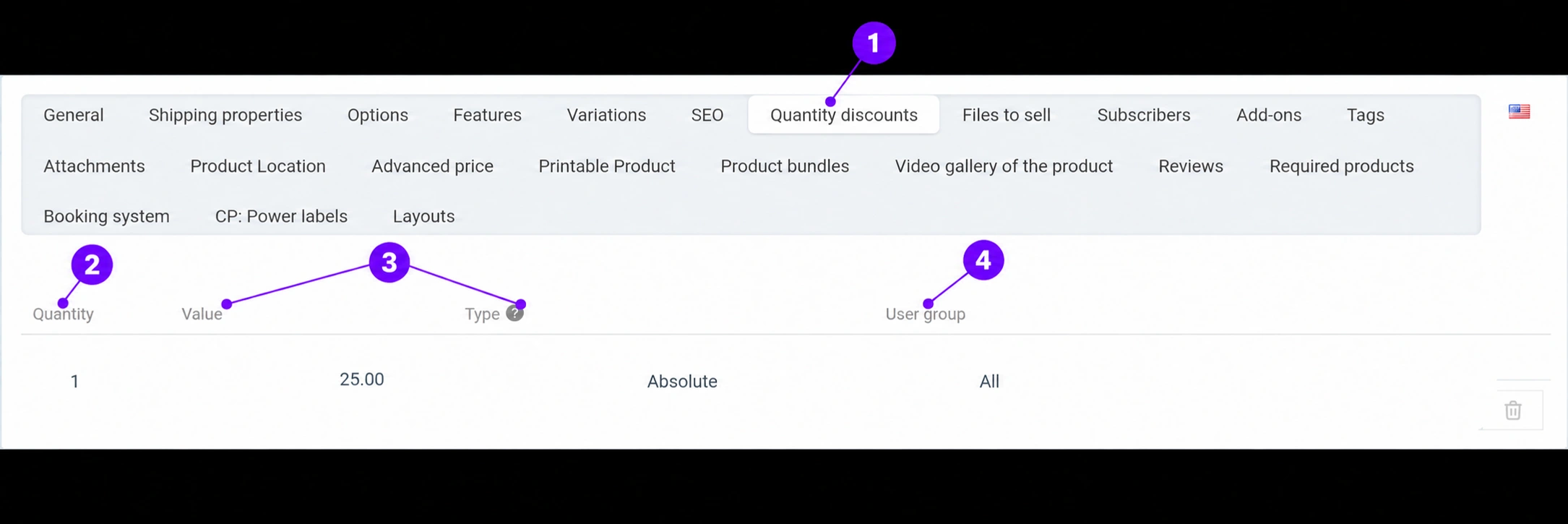
Open the saved product and the corresponding tab. The display shows the quantity, value, type, and user group. The base row with quantity 1 should be distinguished from the additional thresholds.
- 2
Set the minimum quantity for the benefit
Enter the number of units from which a specific price starts to apply, for example 5 or 10. The quantity is a threshold, not the number of items you are giving away. For multiple levels, add separate rows and check that they do not accidentally have the same threshold and group with contradictory values.
- 3
Choose an absolute price or percentage
With an absolute value you enter the final price of one unit for that threshold. Example: with a base price of 25 EUR, an absolute price of 22 EUR from 5 units means 22 EUR per unit, not a discount of 22 EUR. With a percentage you enter a reduction of the base price; 10% off a price of 25 EUR gives 22.50 EUR per unit before other applicable rules. The image shows a sample base row, not a recommended value for your product.
- 4
Check the user group
For each user group, you can add separate quantity thresholds and prices for the same product. A registered customer receives the applicable benefit after logging in and reaching the threshold. Special B2B or wholesale prices require active membership in the corresponding group; registration alone is not approval for all groups. Details and a price list example are provided below in this guide.
- 5
Save the thresholds and check boundary quantities
Add a row using the form controls, save the product, then compare quantities immediately below and at the threshold: for example, 4 and 5, as well as 9 and 10. Check the unit price and the total cart price. The quantity-1 discount for all groups can take over the base price, so do not change that row inadvertently.
- 6
Align the table and message display
If you use advanced pricing, it may separately hide the discount table or display promotional messages. A hidden table does not mean that the rule has been deleted. For the expected design and combinations with other promotions, check the result with the Connect team.
Special quantity discounts for each user group
For the same product, you can define different quantity thresholds and prices for different user groups. Each row connects a quantity, value, price or discount type, and selected group. For example, registered customers may have one benefit, while approved wholesale partners have their own B2B price list.
How does a customer become eligible for their price?
The customer registers and logs in to their account. If the rule applies to the registered users group, the price applies in that logged-in context when the quantity threshold is reached. For a special group, such as Wholesale, the customer must also be assigned active membership in that group according to the approval procedure. Registration alone does not automatically approve membership in every special group or all wholesale discounts.
Application to B2B and wholesale price lists
This logic makes it possible to define wholesale prices by product and customer segment without creating duplicate items. A separate row for quantity 1 and a specific group can serve as its initial unit price, while additional thresholds provide an even better price for a larger order. Be careful: the rule for quantity 1 and all groups changes the general pricing context; therefore, link the wholesale row to the intended group.
| User group | Quantity from | Absolute price per unit |
|---|---|---|
| All customers | 1 | €20 |
| Registered customers | 5 | €18 |
| Approved Wholesale group | 1 | €17 |
| Approved Wholesale group | 10 | €15 |
How do you set up and check the price list?
- On the product, open Quantity Discounts and add a separate row for each threshold and corresponding group.
- Enter the quantity, absolute unit price or discount percentage, and select the correct User Group. You can use the same threshold for different groups with different amounts.
- Save the product. Check the prices as a guest, as a logged-in registered customer, and as a logged-in member of the approved B2B group.
- For each context, test a quantity below the threshold and at the threshold, the unit price, and the total cart amount. If the customer belongs to multiple groups or other promotions exist, check the final applied price; discounts should not be assumed to be stackable in advance.
Do you not see the expected price? Check the customer's login status, active group membership, the group selected on the price row, and the quantity reached. For assigning or approving special groups, contact Connect administration according to your permissions.
Group setup, membership, and approval will be covered in the guide User Groups → within the category Orders and Customers.
Behavioral basis: official CS-Cart instructions for user groups and group prices.
Post-save check
- An absolute value is interpreted as the price per unit.
- The threshold and user group are correct.
- The cart has been checked below and at every threshold.









