

CONNECT HELPCENTER · PRODUCTS AND CATALOG
Sell a file with controlled downloads.
A digital product is delivered by downloading a file. The Files for Sale tab determines what the customer receives, when the download is activated, and which instructions accompany the delivery.

Before you start
Prepare the final sales file, any public sample, the name, instructions, and terms of use. A document that the customer should download for free with a physical item should be added as an attachment instead of as a sales file.
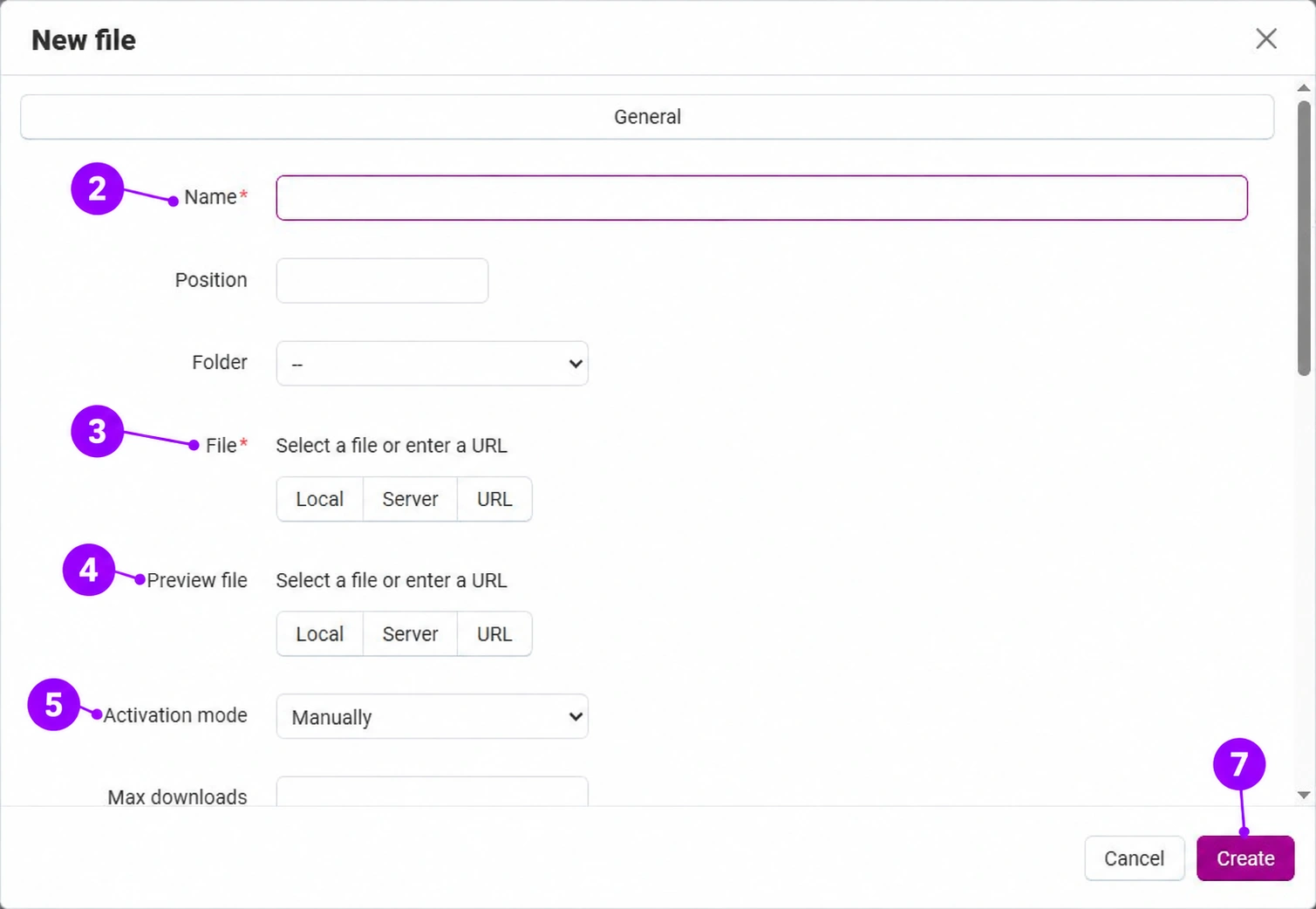
Screenshots use the English interface and sample data. Numbered labels connect the image with the localized explanations. Click the image to open a larger view. The availability of individual fields depends on the product type and your account permissions.
Step-by-step procedure
- 1
Mark the product for download
On the Generaltab, enable the digital product or downloadable product designation in the additional data and save. Enable physical delivery only if the file is also accompanied by actual shipment. Then open Files for Sale → Add file.
- 2
Specify the name and organization
In the new file window, enter a clear name that the customer will recognize. The position determines the order, while the folder is used for grouping when applicable. The name shown to the customer does not automatically rename the original file on your computer.
- 3
Select the sales file
Upload a file from your computer or use an available source on the server or a URL. Make sure it is the final version without internal notes or data belonging to other customers. For an external source, verify its availability and access permissions. Do not place a protected sales file in the public preview field.
- 4
Add a public sample separately
The preview file is used as a sample that can be downloaded before purchase. Use a shortened version, demo, or preview that is allowed public access. If no sample is needed, leave this field empty.
- 5
Select the activation method
Manually requires administrator approval. Immediately activates the download after the order is placed. After full payment links activation to the corresponding order processing statuses. Placing an order is not the same as confirmed payment; align the selection with the payment method and the Connect team.
- 6
Review the restrictions and accompanying instructions
Lower in the window, you will find the maximum number of downloads, license terms, acceptance requirements, and additional instructions. Scroll down in the window to see them. The download count limit and download duration are not the same; unlimited duration is set separately on the product. The terms should correspond to your product and approved business process.
- 7
Create the file and verify delivery
Confirm Create and save the product according to the form. Check the public sample as a logged-out visitor and, using an agreed test order, verify access to the purchased file in the appropriate status. Do not publish the product before verifying that the customer receives the correct version.
Post-save verification
- The sales file and public sample are separate.
- Activation matches payment and order statuses.
- The instructions, version, and download restrictions have been checked.









