

CONNECT HELPCENTER · PRODUCTS AND CATALOG
Add a document that helps the customer.
Product attachments are used for instructions, technical data sheets, dimension drawings, and other accompanying documentation. They are displayed separately from the file sold as a digital product.

Before you start
Prepare the final document with its name, version, and language. Check the content and remove internal data. For a document that is charged for, use Files for sale; an attachment is not a substitute for access control for the purchased digital file.
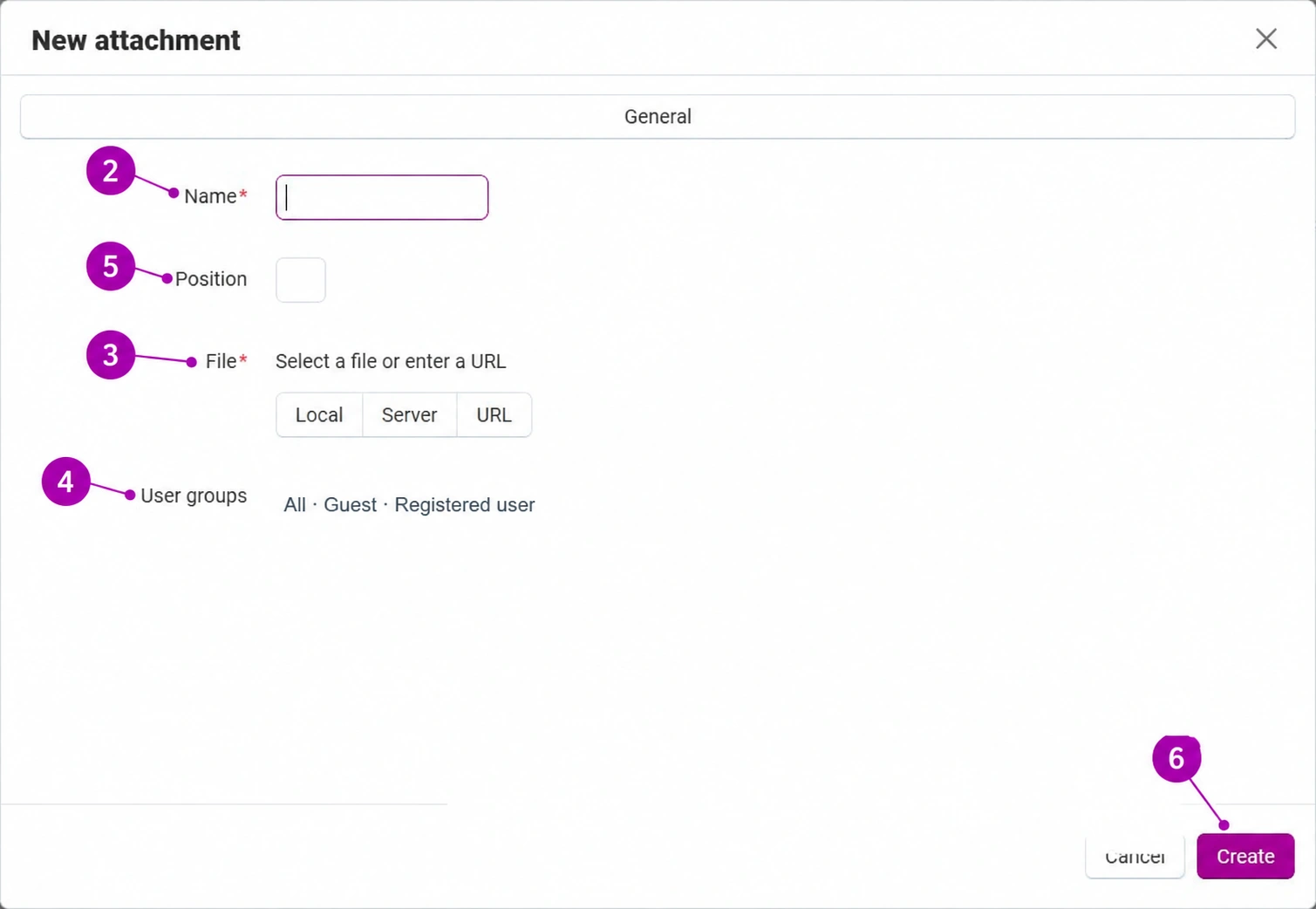
Screenshots use the English interface and sample data. Numbered labels connect the image with the localized explanations. Click the image to open a larger view. The availability of individual fields depends on the product type and your account permissions.
Step-by-step procedure
- 1
Open Attachments and add a new document
Open the saved product, the Attachments tab, then Add attachment. If the list is empty, there are no documents in the displayed context yet.
- 2
Write a name the customer can understand
Instead of an internal document code, use a name such as „Instructions for use – Croatian” or „Technical data sheet – Active model”. The name should distinguish documents and their languages. Check that the displayed name matches the actual file content.
- 3
Upload the file
Select a file from your computer or an available source on the server or URL. For an external link, check that it is stable and available to the intended user. Upload a document optimized for reading on a mobile device, without unnecessarily large scans.
- 4
Check the permitted user groups
Determine who can access the attachment. In the image, the group names have been replaced with a sample; in the actual form, use the appropriate checkboxes. Do not restrict a document that every customer should see to an internal group only. Do not use publicly published documents for confidential data.
- 5
Set the position
The position number determines the order among multiple attachments. Agree on a consistent order, for example instructions first, followed by the technical data sheet and drawing. The position does not determine access rights and is not a version identifier.
- 6
Create and open the document on the storefront
Confirm Create and save the product according to the form. Check the attachment display and the download itself as the user for whom it is intended. If you replace the document with a new version, check the name, link, and downloaded content; the same file name is not proof that a new version was uploaded.
Check after saving
- The document opens and corresponds to the product.
- The name, version, and language are clear.
- Access has been verified for the intended user group.









