

CONNECT HELPCENTER · PRODUCTS AND CATALOG
Offer related items in a single bundle.
A product bundle combines multiple items into an offer with defined quantities and a discount. The customer should clearly see what the bundle includes and what the total price is.

Before you start
Prepare a list of items, quantities, availability, and the planned discount. A bundle is not the same as a required product that is automatically added with the main item. Before proceeding, check the price and stock of all components.
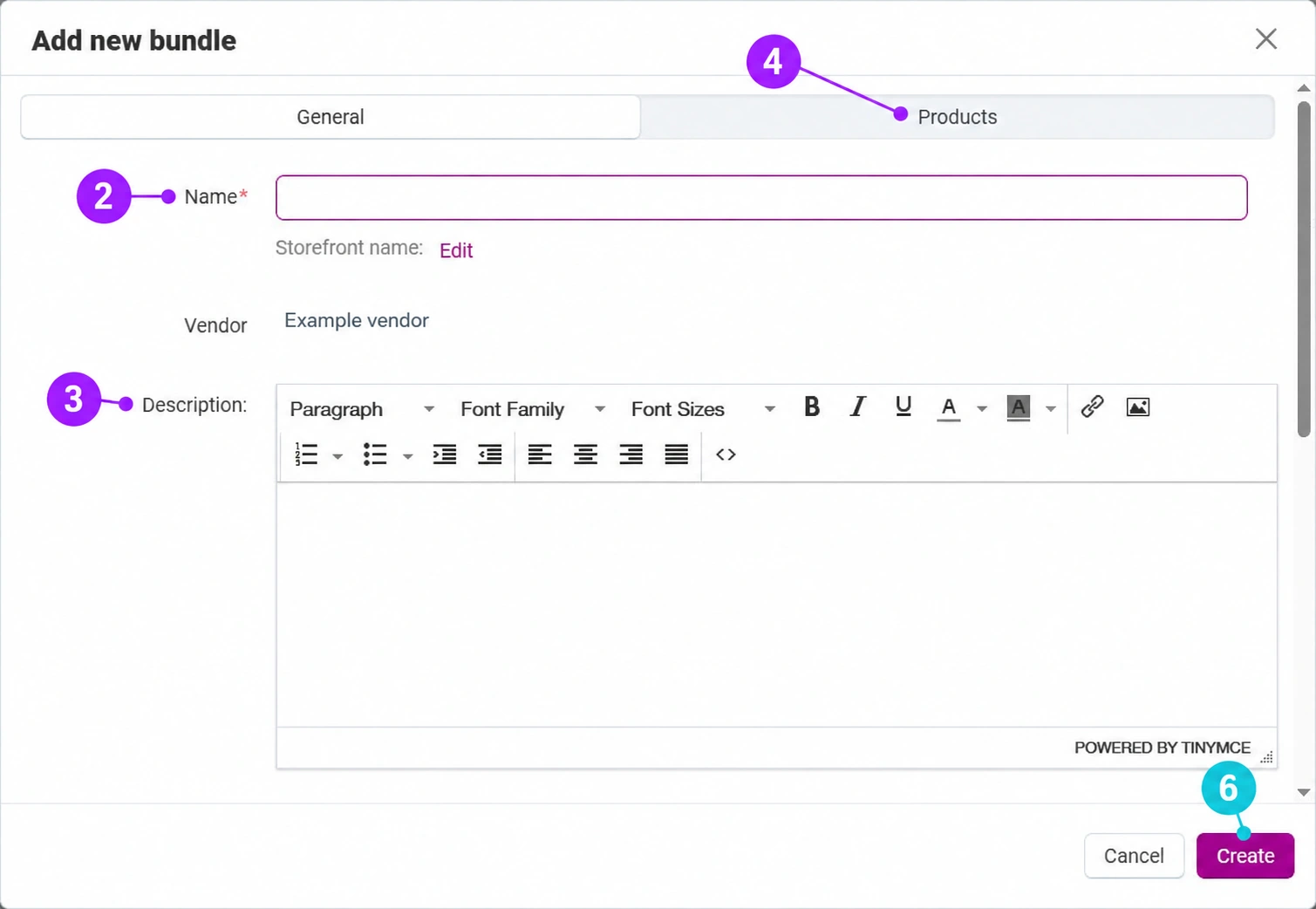
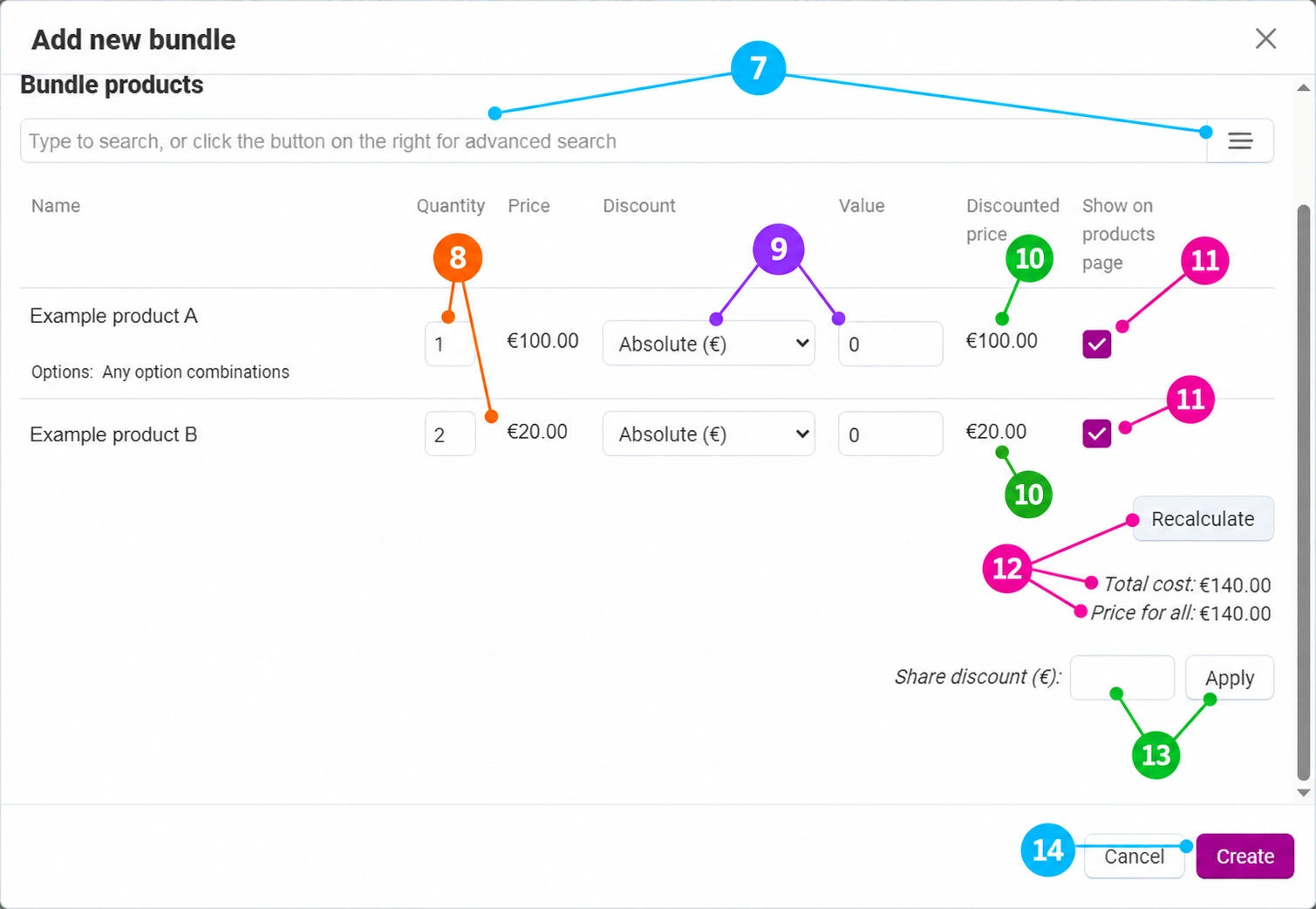
Screenshots use the English interface and sample data. Numbered labels link the image to the localized explanations. Click the image to open a larger view. The availability of individual fields depends on the product type and your account permissions.
Step-by-step procedure
- 1
Open product bundles
In the item editor, open the Product Bundles tab, then Add New Bundle. The bundle overview is also available in the administration's marketing section, depending on your permissions.
- 2
Name the bundle
Enter a name for the administration and check the name intended for the storefront. Use a description such as “Starter Kit – Device and Accessories” so the contents of the offer are clear to the customer. Check the associated vendor.
- 3
Write a description and prepare the promotion display
Describe the bundle contents and terms. Further down in the general information, you will find the display among promotions, promotional image, availability period, and status. The promotional image and photos of individual items are not the same setting. If the bundle is valid only during a campaign, enable and check the start and end dates.
- 4
Add and check components on the Products tab
In the Products tab, review the associated items, quantities, prices, discount type, value, and discounted amount. Check product options and permitted combinations. Add only items that make up a real kit; do not confuse the quantity of an individual component with the total number of bundles.
- 5
Recalculate the offer and compare the total amount
After changing the quantity or discount, use recalculation and compare the total cost and the price for all items. If you use allocation of a shared discount, check the amounts per component again. Specifically test changing an option, an unavailable component, and combining it with other promotions.
- 6
Create the bundle and check the customer journey
Confirm Create or save the existing bundle. On the public page, check the name, contents, period, price, and purchase button. Review the cart contents without submitting an actual order. Delay activation until unavailable components or unclear amounts have been resolved.
Adding products and setting the bundle price
- 7
Find and add products to the bundle
In the open bundle, select the Productstab. In the search field, enter part of the product name and click the desired result. The button to the right of the search opens the advanced selector. Repeat the selection for the other components and check the final rows in the table. The product from which you opened the bundle may already be added; do not select it again unless you want to increase its quantity.
- 8
Specify the quantity of each component
The Quantity column represents the number of units of that product in one bundle. The example in the image contains one unit of product A and two units of product B. Check the options below the name: a message about any combination of options is not confirmation that every combination actually fits your kit.
- 9
Select the discount type and value
In the product row, the Discount column offers an absolute amount in the currency or a percentage. In Value enter the discount amount, not the final bundle price. Example: a product priced at 100 € with a 10% discount costs 90 €. For a 10 € discount, select the absolute amount and enter 10. The selected type determines the meaning of the same number.
- 10
Compare the price after the discount
The Discounted price column shows the result for an individual component. After making a change, also check the quantity so that you do not confuse a discount on one item with the total discount on the entire bundle. The image shows the initial state without a discount; the amounts are examples.
- 11
Determine which products display the bundle
The Show on product page checkbox determines whether the bundle offer is displayed alongside that component. It does not control whether the component is removed from the bundle. Enable it for products on which the customer should see the related offer.
- 12
Recalculate the components and total price
Click Recalculate after adding items or changing quantities or discounts. Compare the total value of the components with the price of the entire bundle. In the example without a discount, the amount is 1 × 100 € + 2 × 20 € = 140 €. Only the final calculation shows whether the bundle matches the planned price.
- 13
Allocate a shared discount if needed
The Distribute discount field below the totals is used for a shared discount expressed in the displayed currency. Enter the amount and click Apply, then check how the module distributed it among the components and what the new total price is. Example: for an initial amount of 140 € and a desired price of 126 €, the difference is 14 €. Before applying it, compare the individual discounts already entered; do not assume that the two methods are added together as intended.
- 14
Save and review the public offer
When the components, quantities, and amounts are correct, select Create for a new bundle or to save the existing one. Recalculate and Apply are used to edit the calculation; they do not replace saving the bundle. On the storefront, check the bundle display, options, total price, and cart contents. Repeat the check after changing the price or availability of any component.
For an existing bundle, open its name or edit it, then open the Products tab. Do not create a new bundle every time you change the contents or discount of an existing one.
Post-save check
- The customer sees the correct bundle contents and quantities.
- The discount and total price match the preparation.
- The status, date, and availability of all components have been checked.









