

CONNECT HELPCENTER · PRODUCTS AND CATALOG
Showcase the product with video in the right place.
The video gallery adds presentations, demonstrations, and instructions to the product. Each video should have a valid source, a descriptive title, a designated position, and a verified display.

Before you start
Prepare a published video or an available video file, along with a title and, if applicable, a thumbnail image. Use material you have the right to publish. Check loading speed, content clarity, and behavior on mobile devices.
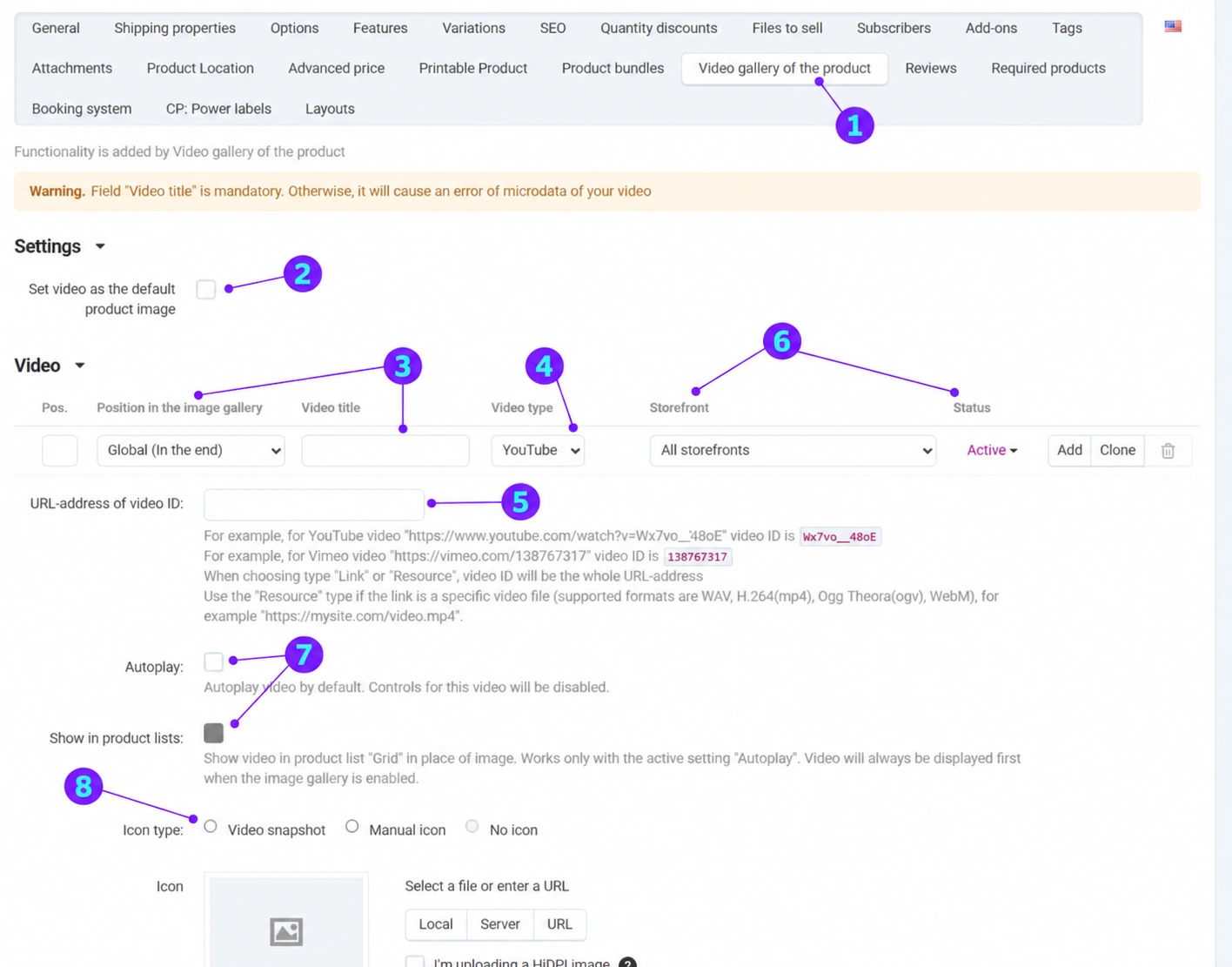
Screenshots use the English interface and sample data. Numbered labels link the image to the localized explanations. Click an image to open a larger view. The availability of individual fields depends on the product type and your account permissions.
Step-by-step procedure
- 1
Open the Product video gallery
Open the product and select the corresponding tab. General data may also include a simple video link entry; do not add the same video through both methods unnecessarily. This guide follows the expanded gallery with position and display settings.
- 2
Decide whether the video should be the main display
A separate checkbox sets the video as the default product image. Enable it only when displaying the video first makes sense for the offer. Check what the customer sees before playback starts and whether the photos remain clearly available.
- 3
Enter the video title
The title is required according to the module message and is important for correctly labeling the video content. Use a specific title such as “Stand assembly – quick instructions”. Do not leave the field empty or enter only “Video 1”. Prepare the title in the language of the content you are editing.
- 4
Select the source type
Select YouTube, Vimeo, link, or resource according to the type of material. The selected type determines what is entered in the next field. A video on a platform and a direct link to an MP4 file are not the same entry method.
- 5
Enter the appropriate ID or address
For YouTube or Vimeo, follow the ID examples shown below the field. For a link or resource, use the complete URL address. Check that the source allows the expected display and is not private or removed. Do not enter temporary links containing a personal access token.
- 6
Set the order, storefronts, and status
Select the position within the gallery: inherited order, beginning, end, or after a specific image. Check the sort position, target storefronts, and status. If the video should appear in only one storefront, do not accidentally leave all storefronts selected. Add or duplicate the row using the appropriate form control.
- 7
Enable autoplay and lists intentionally
Autoplay changes how the video is played and controlled. According to the module instructions, display in the product grid also depends on autoplay being enabled. Check the customer experience and page speed; the checkbox alone does not guarantee that every browser will allow autoplay.
- 8
Select an icon and check the save
Use a frame from the video, your own icon, or the offered option without an icon. If needed, upload a thumbnail image and description. Save the product, then check the gallery and product list on desktop and mobile, including returning to the photos.
Post-save check
- The video has a meaningful title and a valid source.
- The position, storefront, and status have been checked.
- Playback, the icon, and loading have been checked on mobile.









