

CONNECT HELPCENTER · PRODUCTS AND CATALOG
Track customer experiences with the right product.
Product reviews connect a customer's rating and comment to a specific item. Vendor Admin enables viewing, searching, and available actions according to your account permissions.

Before you start
Distinguish a product review from a category comment, seller rating, and support request. To activate or change shared review rules, contact Connect administration. Examples in the images are anonymized and do not represent actual reviews.
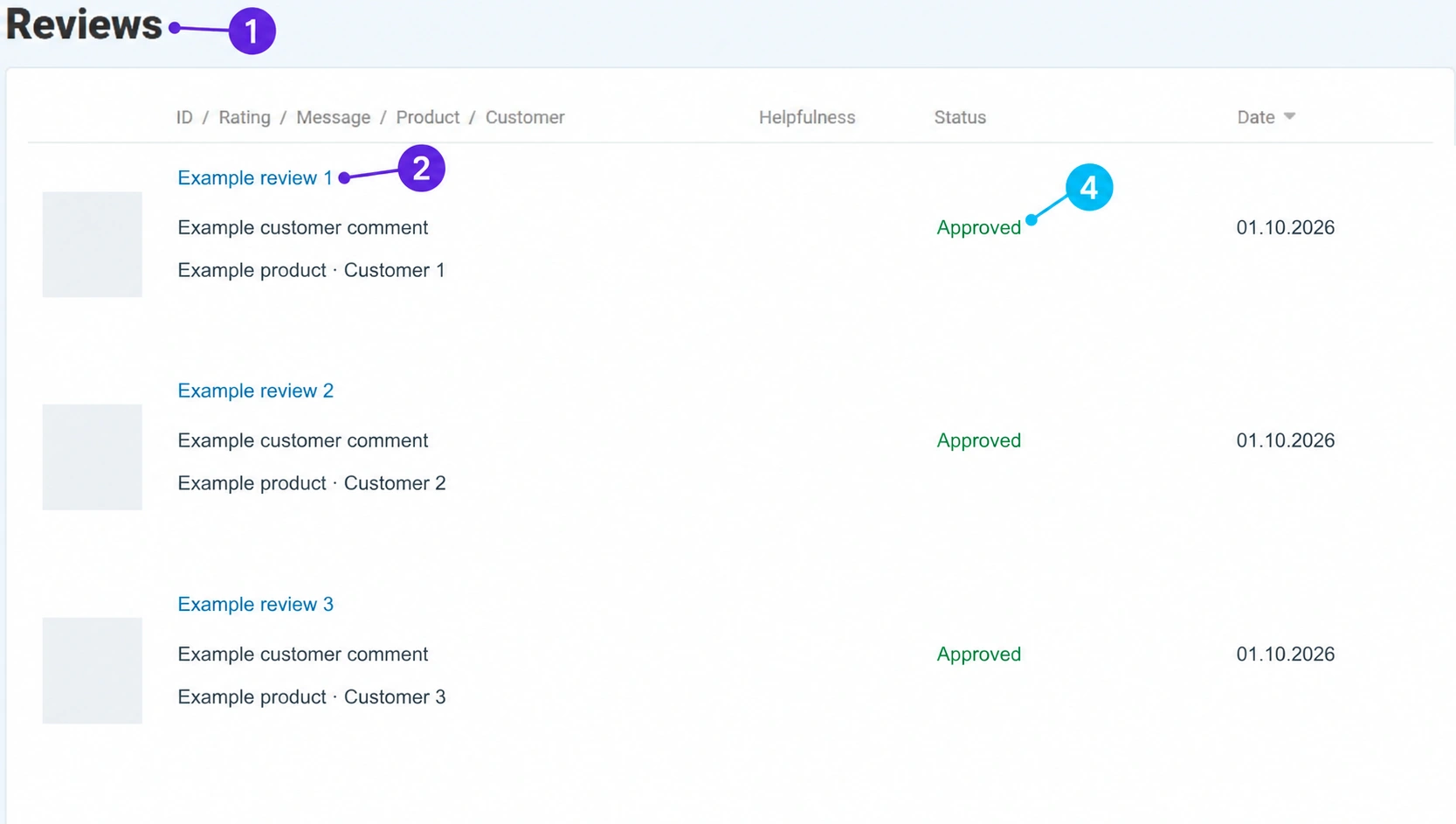
Screenshots use the English interface and sample data. Numbered markers link the image to the localized explanations. Click the image to open a larger view. The availability of individual fields depends on the product type and your account permissions.

Step-by-step procedure
- 1
Open the review overview
In the left menu, select Products → Reviews. For an individual item, you can also open its reviews tab. An empty product tab does not automatically mean that the feature is disabled; there may simply be no records for that item.
- 2
Open an individual review
Click the review link and check which product it belongs to. The details display the rating, date, usefulness, advantages, disadvantages, and comment according to the submitted content. Do not rewrite the customer's comment in a way that changes its meaning.
- 3
Use the search sidebar
In a narrower view, the sidebar opens using its side tab. Fields are available for customer, advantages, disadvantages, comments, rating, usefulness, and presence of a photo. Enter only the conditions you need; too many simultaneous criteria may hide the record you are looking for.
- 4
Check the status and reply
The status indicates whether the review is approved or in another available state. The ability to change it depends on permissions and marketplace rules. A reply field is available in the details: respond specifically and professionally, without publishing personal data or order information. If you do not have permission to save or the content is disputed, send the review ID to the Connect team.
- 5
Search and check the public result
Run the search in the sidebar and open the result. After an allowed change or reply, save it according to the form and check the public product. Check the number and average of ratings in the proper product and storefront context. The expected moderation may be required for new submissions to become visible.
- 6
Report a problem with a specific record
For a duplicate, offensive content, incorrect association, or missing display, send support the review and product IDs, the storefront, and a description of the problem. Do not add invented customer reviews as a replacement for an empty tab. For an actual complaint process, use the appropriate support channel and order.
Post-save check
- The review belongs to the correct item.
- The status and public display have been compared.
- The reply is helpful and does not reveal customer or order information.









