

CONNECT HELPCENTER · PRODUCTS AND CATALOG
Understand the layout of your product page.
The Layouts tab shows the arrangement of product page blocks and the connection to the selected storefront. The Connect team prepares the design, templates, and changes to keep pages consistent.

Before you start
Prepare the product, storefront, and description of the desired change. The product detail template on the General tab and the block layout on the Layouts tab are connected display components, but they are not the same field.
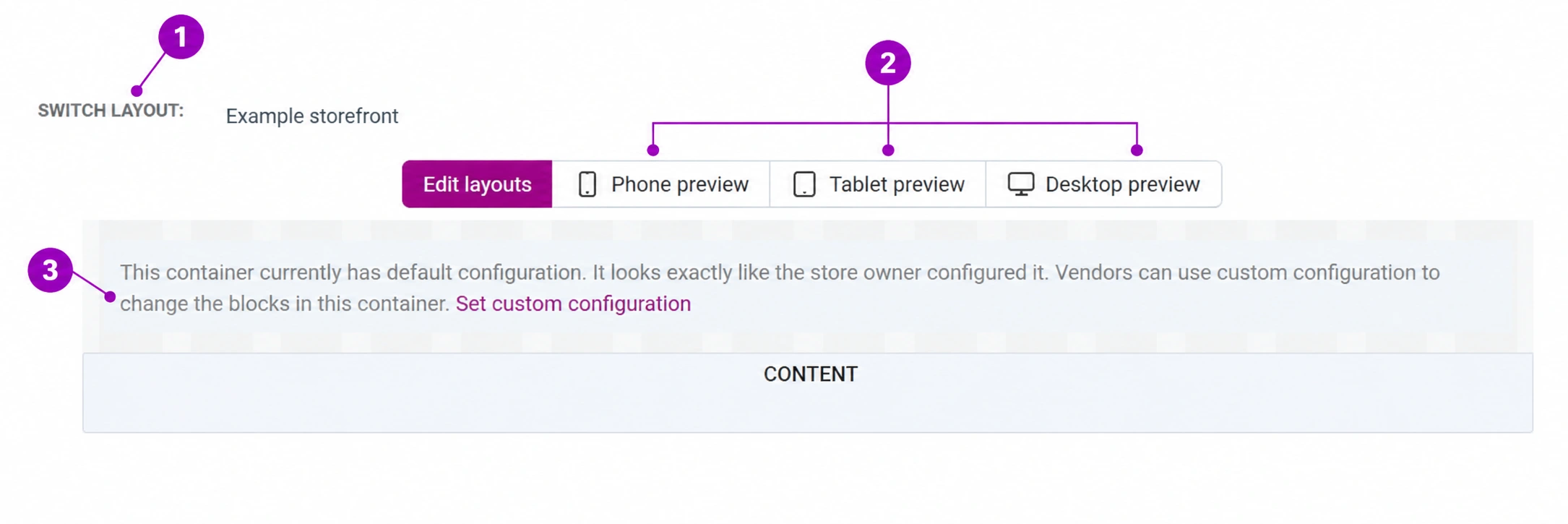
Screenshots use the English interface and sample data. Numbered labels connect the image with the localized explanations. Click the image to open a larger view. The availability of individual fields depends on the product type and your account permissions.
Step-by-step procedure
- 1
Open Layouts and check the context
In product editing, select Layouts. In the layout selector, check the store or storefront. In the image, the name has been replaced with a sample value. The wrong context may show the layout of another store.
- 2
Review the devices
The controls for phone, tablet, and computer are used to check the layout at different sizes. Supplement the administration preview with the actual public page; the block layout is not a complete simulation of the customer's device.
- 3
Read the message about the default configuration
The default configuration means that the product uses a shared layout. An empty or condensed editor view does not prove that the public page has no content. The button for a custom configuration creates a separate management method for that section; do not activate it just for previewing.
- 4
Prepare a specific request for the change
Tell the Connect team what should be added or moved, its position relative to the price, description, or gallery, the storefront, and whether the change applies to one or more products. Attach the final text, image, and destination link. Do not edit shared blocks blindly.
- 5
Check the product detail template
The General data may have an inherited or custom template selected, for example for a real estate or B2B view. Align the selection with the offer type and Connect design. Changing the template does not automatically populate missing product data.
- 6
Confirm the public display after implementation
Check the title, gallery, price, options, features, documents, and main purchase button on computer and mobile. For a missing element, check the content, activation, and configuration—not just the presence of the block name in the administration.
Post-save check
- The preview refers to the correct storefront and product.
- The change is aligned with the Connect team and the template.
- The content and main purchase steps have been reviewed on mobile.









